
SPARQL Stores
The SPARQL Stores settings view lets you manage triple store profiles. Each profile describes what a specific triple store can do — for example, whether it supports inferencing — and which queries it should use for automated tasks, like fetching the list of graphs.
Every SPARQL connection points to exactly one store profile. Whenever Mentor needs to run a query on your behalf — listing graphs, opening or deleting a graph, describing a resource — it takes the query from the store profile of the connection instead of assuming a particular vendor dialect.
The view is opened from the Command Palette (Ctrl+Shift+P) with the Mentor: Settings command, followed by selecting Query → Stores in the navigation:
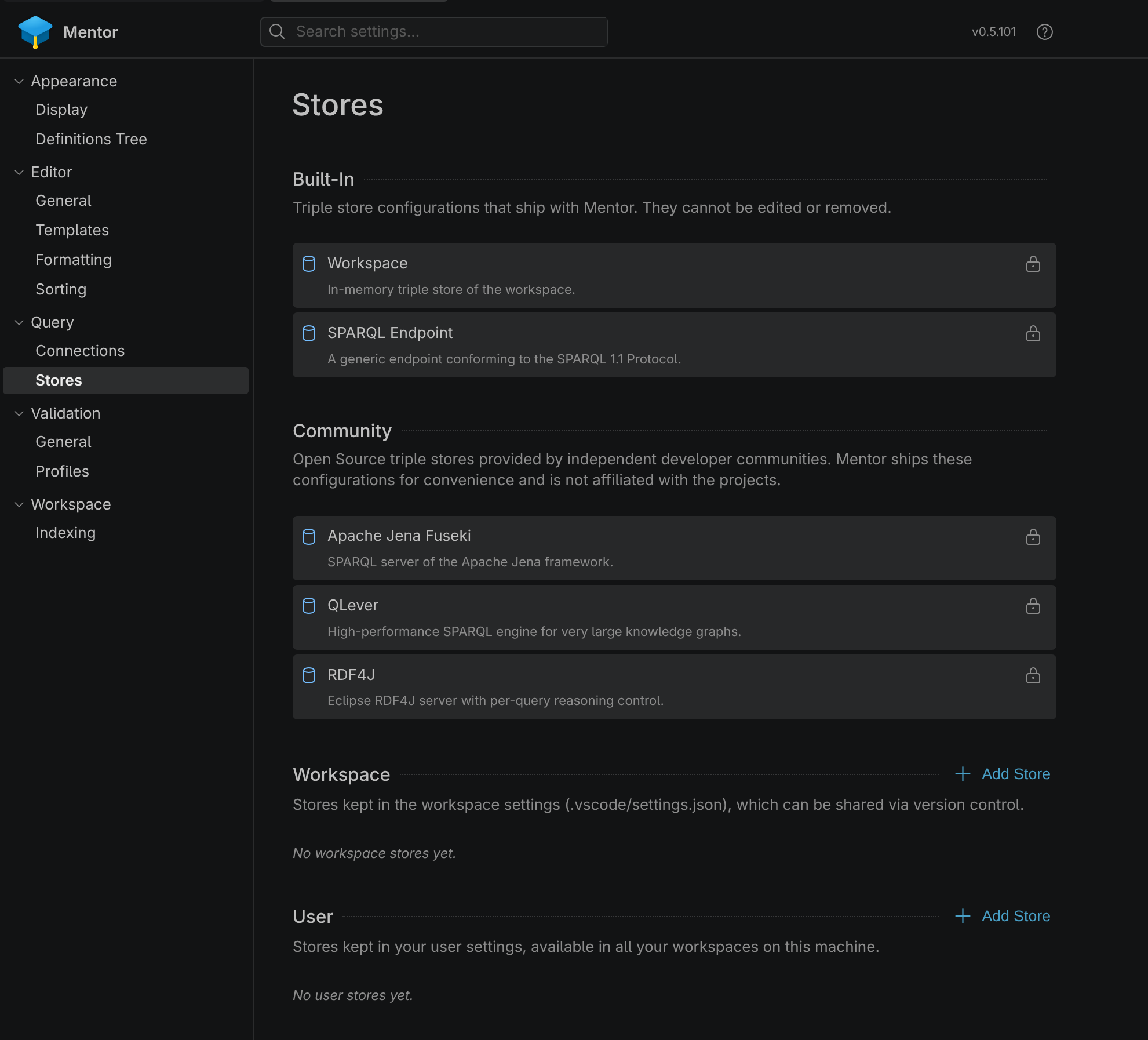
The view is divided into four sections: Built-In, Community, Workspace and User.
| Type | Description |
|---|---|
| Built-In | Vendor neutral store profiles that ship with Mentor: the generic SPARQL Endpoint profile and the Workspace profile of Mentor’s internal RDF triple store. They cannot be edited or removed. |
| Community | Store profiles for commonly used, and actively developed open source triple stores. Thanks to all the great people developing and maintaining these projects. |
| Workspace | Workspace stores are stored in the .vscode directory and can thus be shared with other users in version controlled repositories. |
| User | User stores are only available to the current user and are typically stored on the user’s local machine and can be synced across devices with Settings Sync. |
View Actions
Section titled “View Actions”Unlike the connections view, the stores view has no global title bar actions. Instead, each editable section has its own action in the section header:
| Action | Description |
|---|---|
| Add Store | Configure a new SPARQL store profile in the configuration scope of the section it was invoked from. |
Store Actions
Section titled “Store Actions”When you select or hover a store in the list view, additional actions will become available in the store header:

| Action | Description |
|---|---|
| Documentation | Open the configured documentation page for the store. |
| Delete Store | Deletes the selected SPARQL store. |
Built-in and community stores are marked with a lock icon instead of the delete action. They can be opened and inspected, but not modified.
Editing Stores
Section titled “Editing Stores”When you select an existing store in the store manager or when you click on the ‘Add Store’ icon, the store details will be displayed in a new dialog window.
From here, you can modify the store settings, such as the name, documentation URL and other parameters. Once you have made your changes, you can save them to update the store:

The dialog groups the store settings into the three tabs General, Queries and Reasoning. The configuration scope of the store is selected next to the dialog title, the Save button and the Delete store action are located in the dialog header.
The following configuration options are available on the General tab:
| Setting | Description |
|---|---|
| Name | The display name of the store profile. It is shown in the Store dropdown of the connection editor. |
| Description | An optional description which helps to keep store profiles apart. It is shown as the subline in the store list. |
| Documentation URL | An optional link to the documentation of the triple store. When set, the store list offers the Documentation action. |
Reasoning
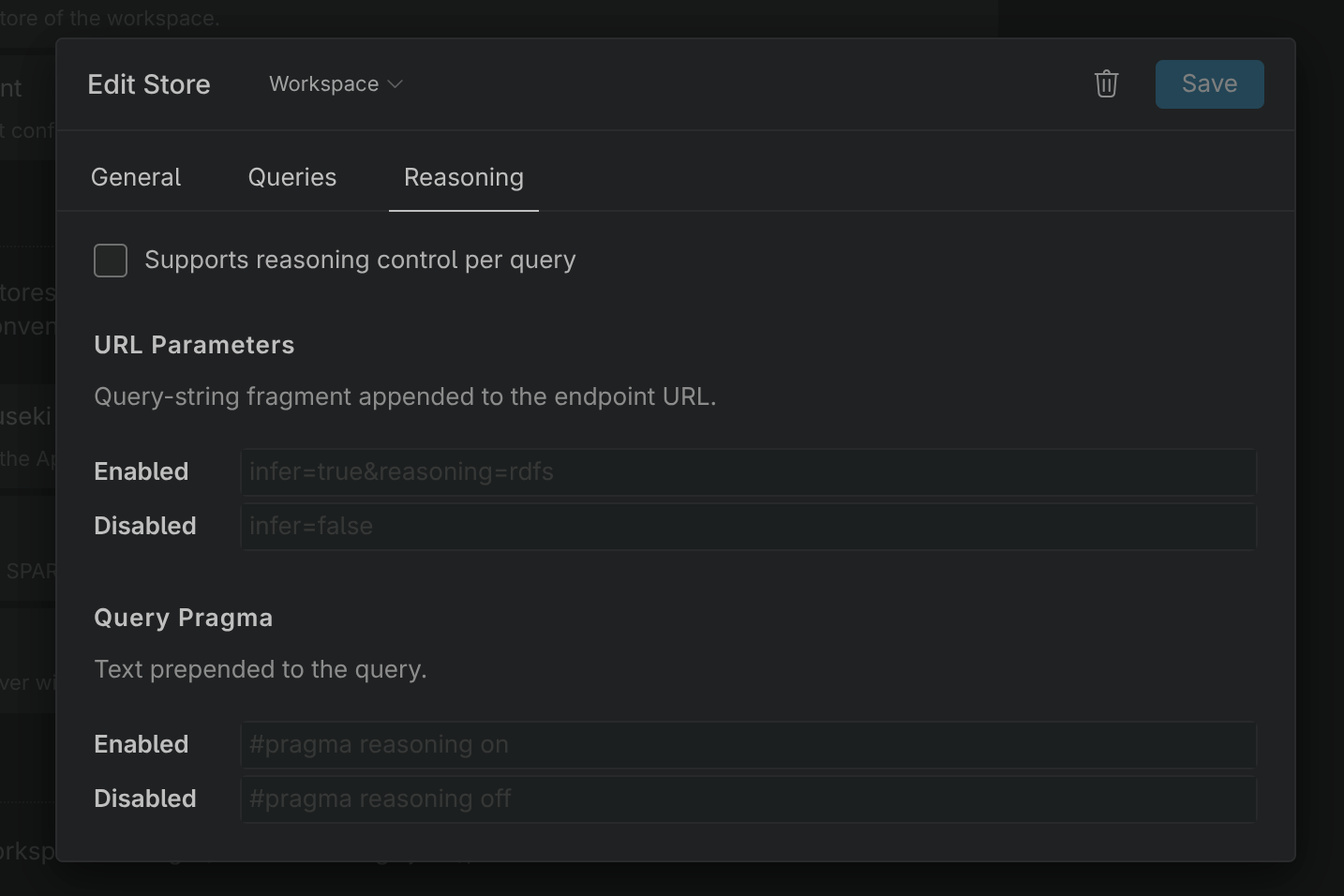
Section titled “Reasoning”Many triple stores can include inferred triples in a query result, but there is no standardized way to request this. The Reasoning tab describes how the store expects reasoning to be switched on and off:
| Setting | Description |
|---|---|
| Supports reasoning control per query | Indicates that the store can toggle reasoning per query. When disabled, all other fields on this tab are unavailable and connections using this store cannot toggle inference. |
| URL Parameters | Query-string fragment appended to the endpoint URL, for the Enabled and the Disabled state — for example infer=true and infer=false. |
| Query Pragma | Text prepended to the query, for the Enabled and the Disabled state — for example #pragma reasoning on and #pragma reasoning off. |
Both channels are optional and can be combined; a field that is left empty is simply not applied.
Editing Queries
Section titled “Editing Queries”Some of Mentor’s features are implemented as SPARQL queries that run against your endpoint. Because the required dialect differs between triple stores, each of these queries can be overridden per store profile on the Queries tab:
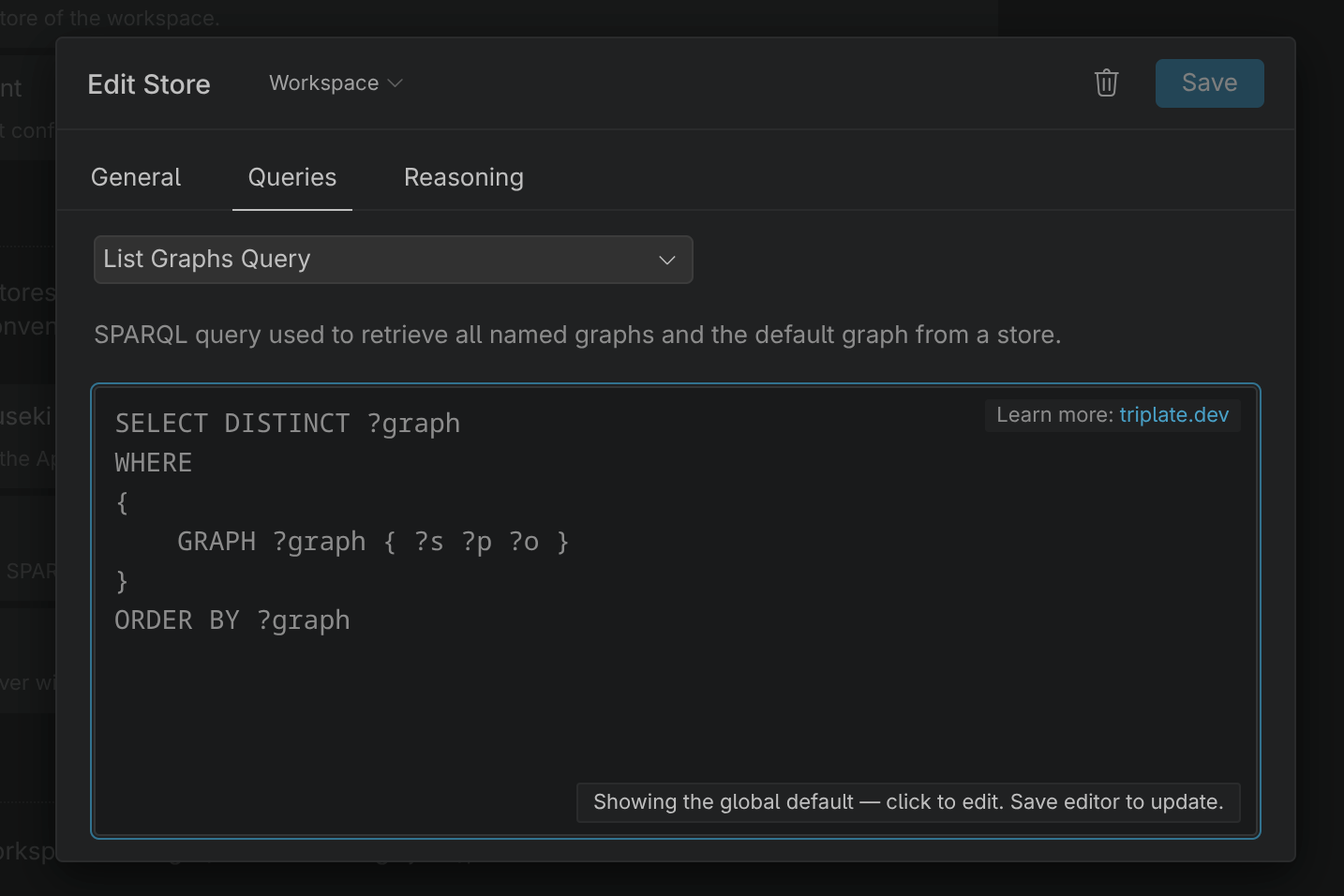
Select the query you want to change from the dropdown at the top of the tab. The following queries can be customized:
| Query | Used for |
|---|---|
| List Graphs Query | Retrieves all named graphs of a store. Executed by the List Graphs action in the connections view and when the graphs of a connection are loaded automatically for auto-complete and linting. |
| Drop Graph Query | Removes a named graph from the store. Executed from the graph list in the SPARQL results view. |
| Describe Resource Query | Retrieves the description of a resource. Executed by the Describe Resource command in the editor context menu and in the Definitions Tree. |
| Export Graph Query | Exports a named graph as Turtle when you open a graph from the graph list. |
| Count Graphs Query | Determines the size of a graph before it is exported, so that Mentor can warn you about very large graphs. |
A query that is not overridden falls back to the global default. Mentor indicates this by rendering the preview muted, with the hint Showing the global default. As soon as you change the query, it becomes a store-specific override — use Reset to Default in the preview to remove it again.
The Triplate Workflow
Section titled “The Triplate Workflow”Except for the List Graphs Query, all of these queries receive parameters from Mentor. They are therefore not plain SPARQL queries, but Triplate templates: a typed --- frontmatter header declares the parameters, and the query body interpolates them injection-safe with ${…}.
Editing a query template works like this:
-
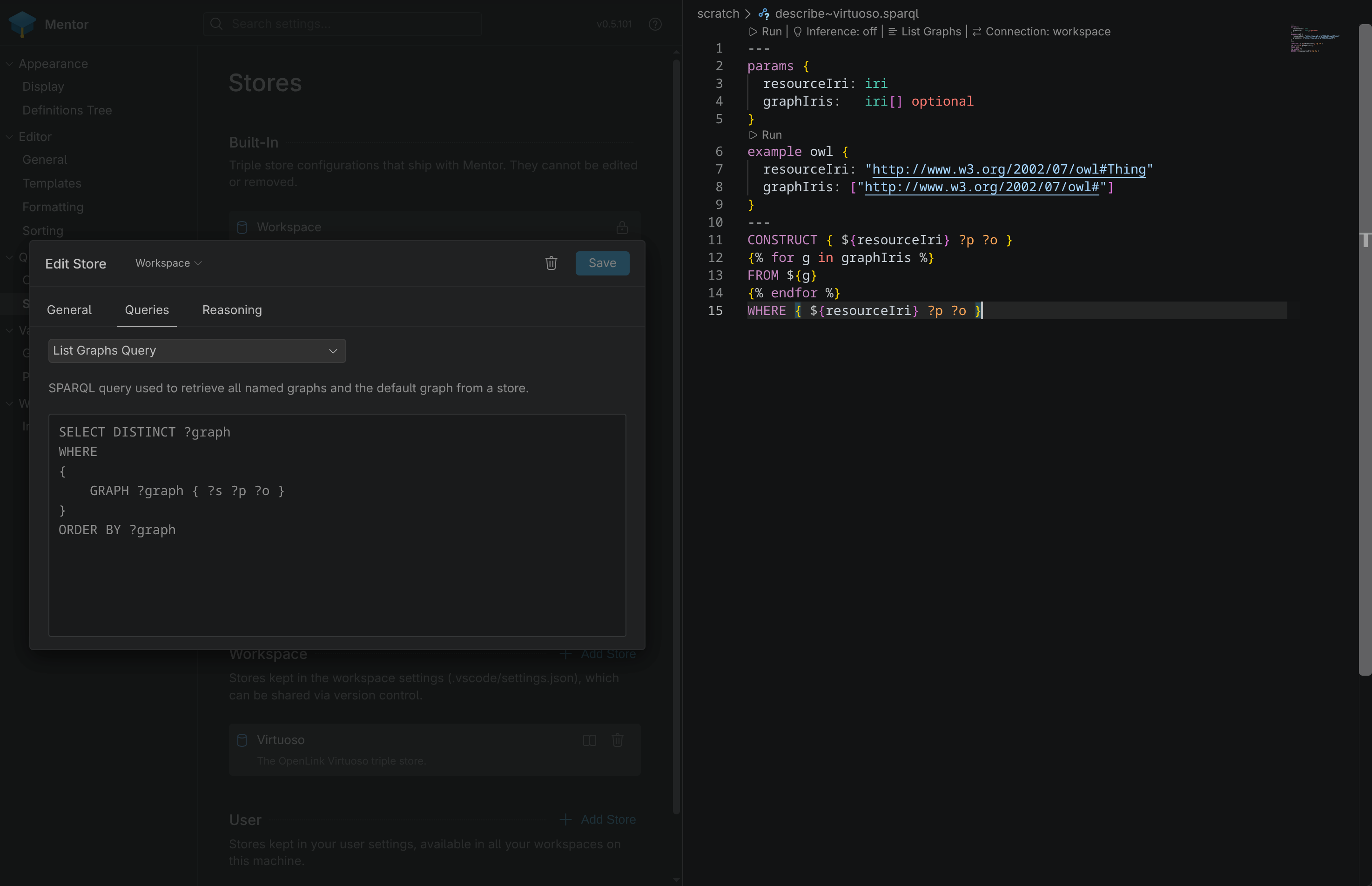
Click on the query preview on the Queries tab. The template opens in a real editor tab beside the settings, so you get syntax highlighting, diagnostics and code lenses instead of a plain text box.
-
Edit the template. The
params { … }block in the frontmatter declares which values the template accepts, the body is ordinary SPARQL with${…}interpolations and{% if %}/{% for %}control flow:---params {graphIri: iri}---CONSTRUCT {?s ?p ?o .} WHERE {GRAPH ${graphIri} {?s ?p ?o .}} -
Optionally declare one or more
exampleblocks in the frontmatter to try the template out with concrete values. An example has an identifier, an optional description and a value for each parameter:---params {graphIri: iri}example skos "Export the SKOS vocabulary" {graphIri: <http://www.w3.org/2004/02/skos/core>}---CONSTRUCT {?s ?p ?o .} WHERE {GRAPH ${graphIri} {?s ?p ?o .}} -
Use the Run code lens to render and execute the template. The lens at the top of the file asks for the parameter values — or lets you pick one of the declared examples — while the lens above an
exampleblock runs that example directly. The rendered query is executed against the endpoint shown in the Connections Lens of the editor, which is the internal workspace store by default.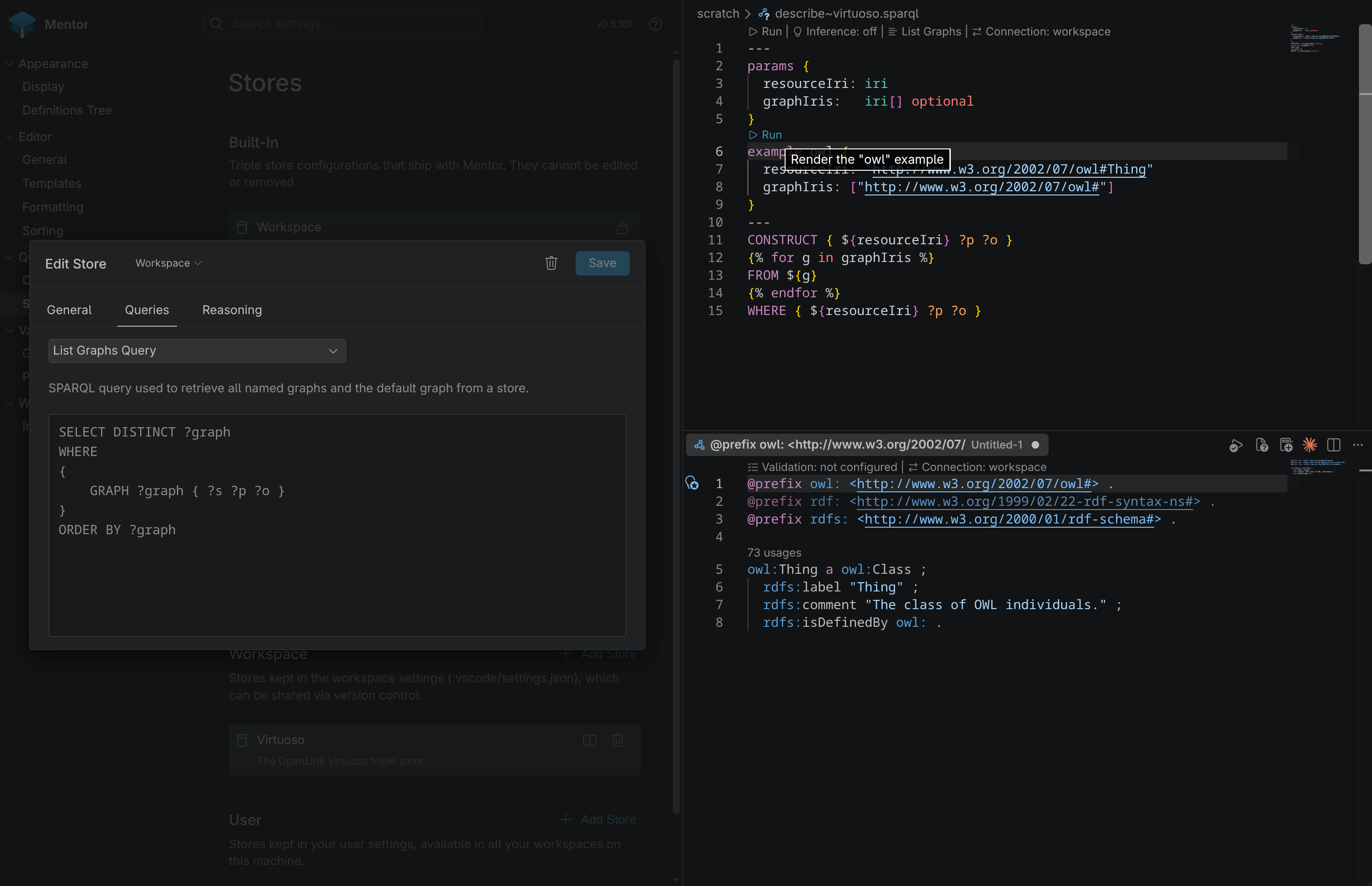
-
Save the editor (
Ctrl+Son Windows/Linux,Cmd+Son macOS) to hand the template back to the store dialog. The preview on the Queries tab is updated immediately. -
Save the store in the dialog header to persist the override in your user or workspace settings.
| Query | Parameters | Expected Result |
|---|---|---|
| List Graphs Query | none | Bindings whose first variable is the graph IRI. |
| Drop Graph Query | graphIri: iri |
A SPARQL update. |
| Describe Resource Query | resourceIri: iri, graphIris: iri[] optional |
RDF triples (CONSTRUCT or DESCRIBE). |
| Export Graph Query | graphIri: iri |
RDF triples (CONSTRUCT or DESCRIBE). |
| Count Graphs Query | graphIri: iri, limit: int optional |
A single binding named ?count. |
Deleting Stores
Section titled “Deleting Stores”To delete a store from the stores view you can either use the icon in the store manager or click on the same icon in the store detail view. Built-in and community stores cannot be deleted.
When asked, confirm the deletion when prompted. Please keep in mind that once a store is deleted, it cannot be recovered, so make sure you really want to delete it before confirming.
If the store is still used by SPARQL connections, Mentor lists the affected connections and offers two ways to resolve this:

| Action | Description |
|---|---|
| OK | Deletes the store and switches the affected connections to the generic SPARQL Endpoint store. |
| Delete Connections | Deletes the store together with all connections that use it. |
Settings
Section titled “Settings”Store profiles and the global defaults of the store queries are kept in the following settings: