
SHACL Validation
Mentor validates the RDF documents in your workspace against SHACL shape graphs. Validation results are published as ordinary Visual Studio Code diagnostics, so they appear in the Problems panel and as squiggles in the editor, right next to the syntax errors of the same document.
Validation is organised in profiles. A profile is self-contained: it bundles a set of SHACL shape graphs with the workspace files they apply to, and decides whether those files are validated automatically. A document can be covered by several profiles at once — the shapes of all matching profiles are combined into one validation run.
The settings are split over two pages, both opened from the Command Palette (Ctrl+Shift+P) with the Mentor: Settings command:
| Page | Contents |
|---|---|
| Validation → General | The master switch, the guard rails that apply to every run, and the statistics of the last workspace validation. |
| Validation → Profiles | The built-in templates and the profiles that decide what is validated against which shapes. |
General
Section titled “General”The General page reports the outcome of the last validation run and holds the settings that apply to validation as a whole:
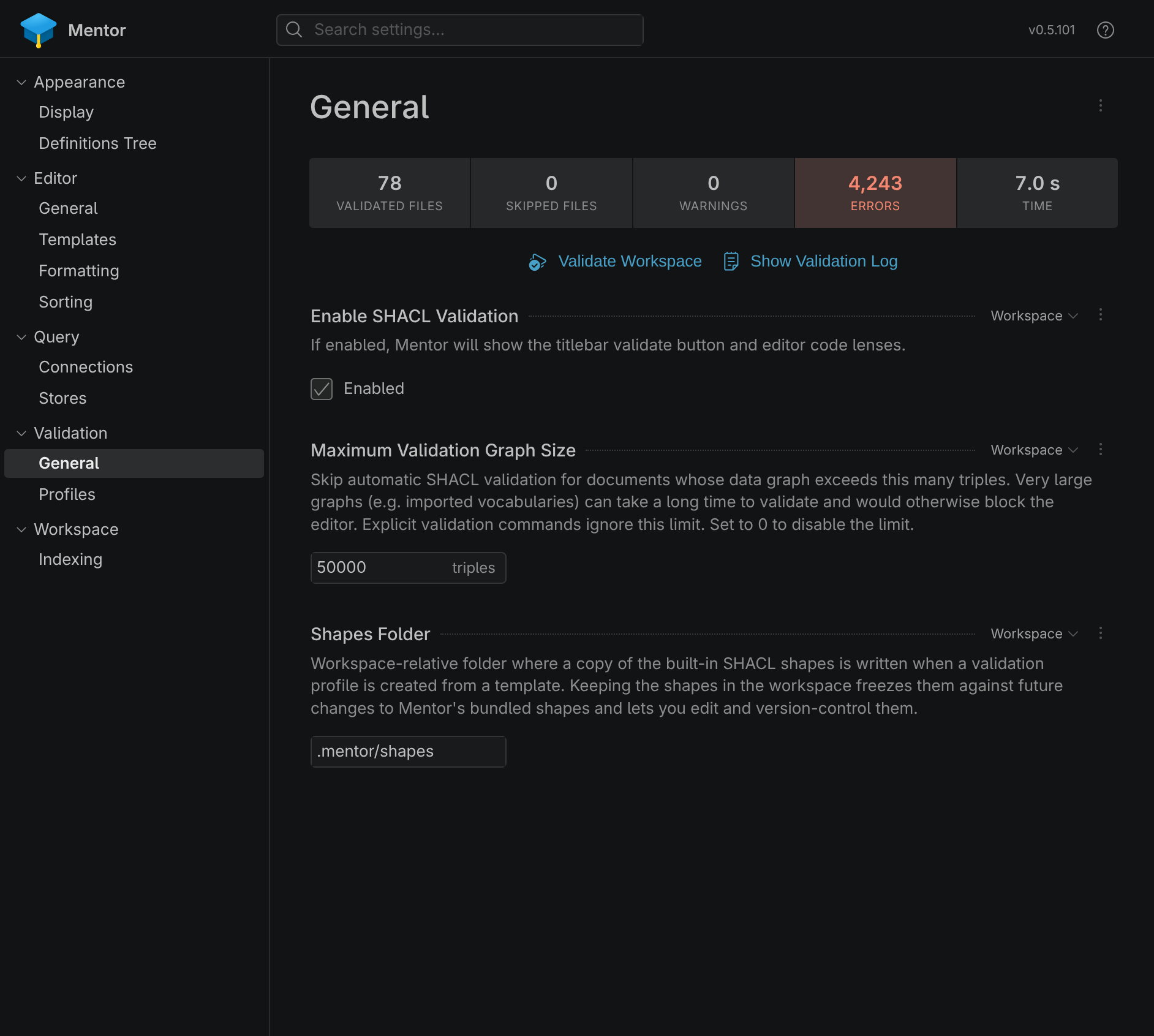
The dashboard at the top summarizes the most recent workspace validation:
| Metric | Description |
|---|---|
| Validated Files | Number of files that were actually validated in the last run. |
| Skipped Files | Number of matched files that were skipped because their data graph exceeds the maximum graph size. |
| Warnings | Number of results with warning severity. |
| Errors | Number of results with error severity. |
| Time | Duration of the last run. |
Below the dashboard, the page offers the following commands:
| Action | Description |
|---|---|
| Validate Workspace | Runs a syntax check over every indexed file, followed by SHACL validation of all profiles. Disabled while validation is turned off or no folder is open. |
| Show Validation Log | Opens the Mentor Validation output channel with the detailed log of the last run. |
The following settings are available:
| Setting | Description |
|---|---|
| Enable SHACL Validation | The master switch. When disabled, the editor code lenses, the title bar validate button and all automatic validation are turned off. |
| Maximum Validation Graph Size | Skips automatic validation for documents whose data graph exceeds this many triples (50.000 by default). Set to 0 to disable the limit. |
| Shapes Folder | Workspace-relative folder a template’s shapes are copied into (.mentor/shapes by default). |
Status Bar
Section titled “Status Bar”While validation is enabled, a dedicated validation item is displayed in the status bar next to the workspace index item:

| State | Description |
|---|---|
| Running | A spinner with the current progress. Clicking the item cancels the run after a confirmation. |
| Summary | The outcome of the last workspace run. Clicking the item opens the General page. |
| Configuration error | Shown when a profile references shape files that do not exist. Clicking the item opens the Profiles page. |
Profiles
Section titled “Profiles”The Profiles page lists the built-in templates and all validation profiles:
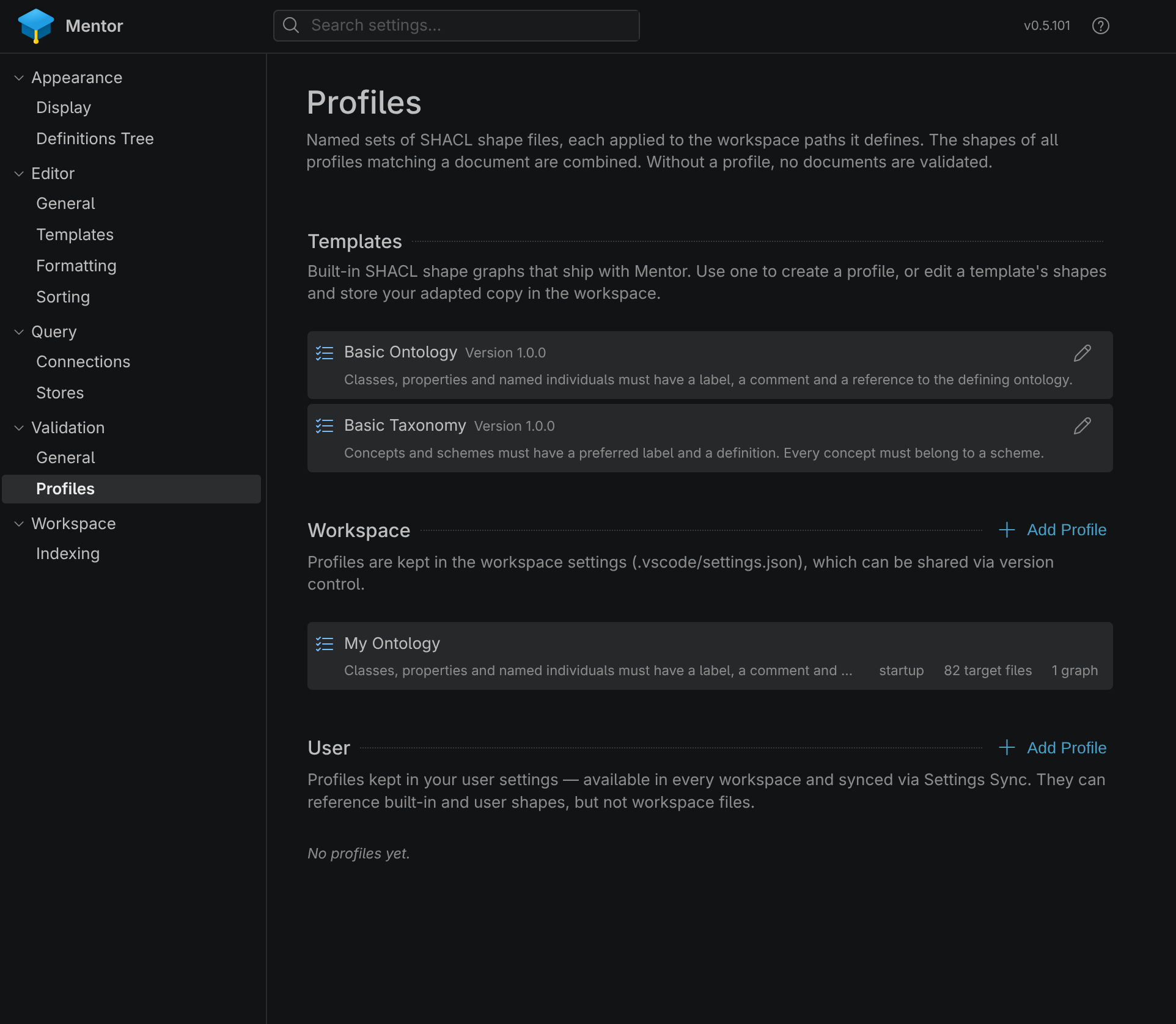
The view is divided into three sections: Templates, Workspace and User.
| Type | Description |
|---|---|
| Templates | Built-in SHACL shape graphs that ship with Mentor. They are not active on their own — use one to create a profile, or edit a template’s shapes and store your adapted copy in the workspace. |
| Workspace | Profiles are kept in the workspace settings (.vscode/settings.json), which can be shared via version control. |
| User | Profiles kept in your user settings — available in every workspace and synced via Settings Sync. They can reference built-in and user shapes, but not workspace files. |
View Actions
Section titled “View Actions”Like the stores view, each editable section has its own action in the section header:
| Action | Description |
|---|---|
| Add Profile | Creates a new, empty validation profile in the configuration scope of the section it was invoked from. |
Profile Actions
Section titled “Profile Actions”Each profile row summarizes the profile at a glance and offers additional actions when it is selected or hovered:

| Action | Description |
|---|---|
| Validate Profile | Runs SHACL validation over all files the profile applies to. Hidden while validation is disabled. |
| Delete Profile | Deletes the selected profile after a confirmation. |
The subline of a row shows the profile description followed by its live statistics: the enabled automatic validation (startup, on change), the number of target files the profile currently applies to, the number of excluded files its exclusions carve out and the number of assigned shape graphs. A profile without shape graphs, or one referencing graphs that no longer exist, is flagged with a warning.
Templates
Section titled “Templates”A template is a ready-made starting point that bundles a shape graph maintained by Mentor:
| Template | Validates |
|---|---|
| Basic Ontology | Classes, properties and named individuals must have a label, a comment and a reference to the defining ontology. |
| Basic Taxonomy | Concepts and schemes must have a preferred label and a definition. Every concept must belong to a scheme. |
Both are versioned; the version is shown next to the template name.
Templates support two workflows:
-
Create a profile from a template. Click the template row. Mentor copies the template’s shape graph into your workspace, under
<Shapes Folder>/<template>-<version>.ttl— for example.mentor/shapes/ontology-1.0.0.ttl— and opens the New Profile dialog, pre-filled with the copied shape file, the template’s description and an include pattern of**/*so the profile is active right away. All you have to add is a name. -
Adapt a template’s shapes. Click the Edit action on the template row. The bundled shape graph opens in an editor as an unsaved Turtle document, so you can adapt it and save your own copy anywhere in the workspace, then reference that file from a profile.
Editing Profiles
Section titled “Editing Profiles”Clicking a profile row, the Add Profile action or a template opens the profile dialog. The configuration scope is selected next to the dialog title, the Save button and the Delete profile action are located in the dialog header. The settings are grouped into the three tabs General, Shapes and Files:
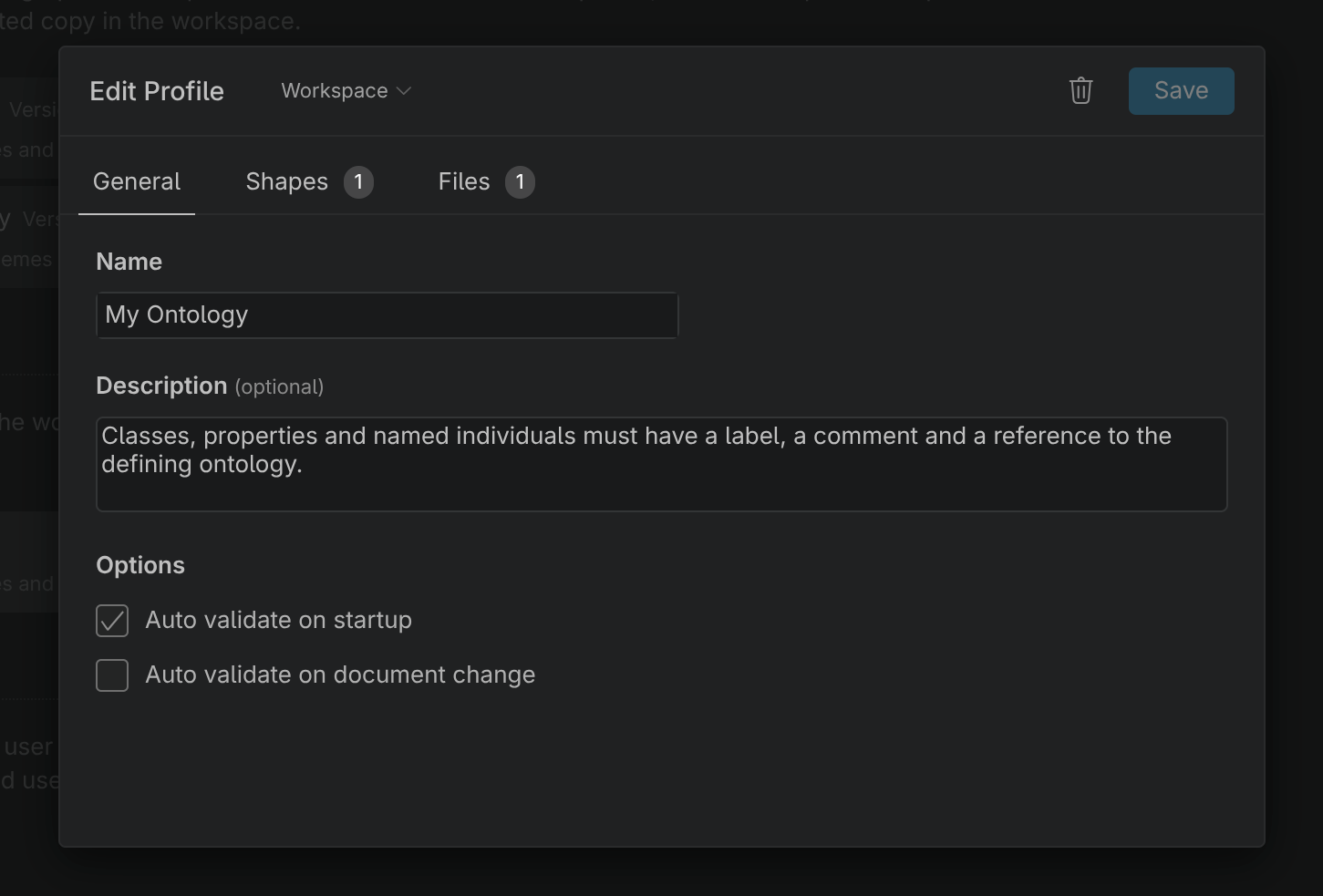
The following configuration options are available on the General tab:
| Setting | Description |
|---|---|
| Name | The display name of the profile. Required. The stable profile id is derived from it when the profile is first saved and does not change on rename. |
| Description | An optional description, shown in the profile list and in the shape configuration quick pick. |
| Auto validate on startup | Validates all files the profile applies to once workspace indexing has completed. |
| Auto validate on document change | Re-validates a matched document while it is edited. |
Shapes
Section titled “Shapes”The Shapes tab assigns the SHACL shape graphs the profile validates against:
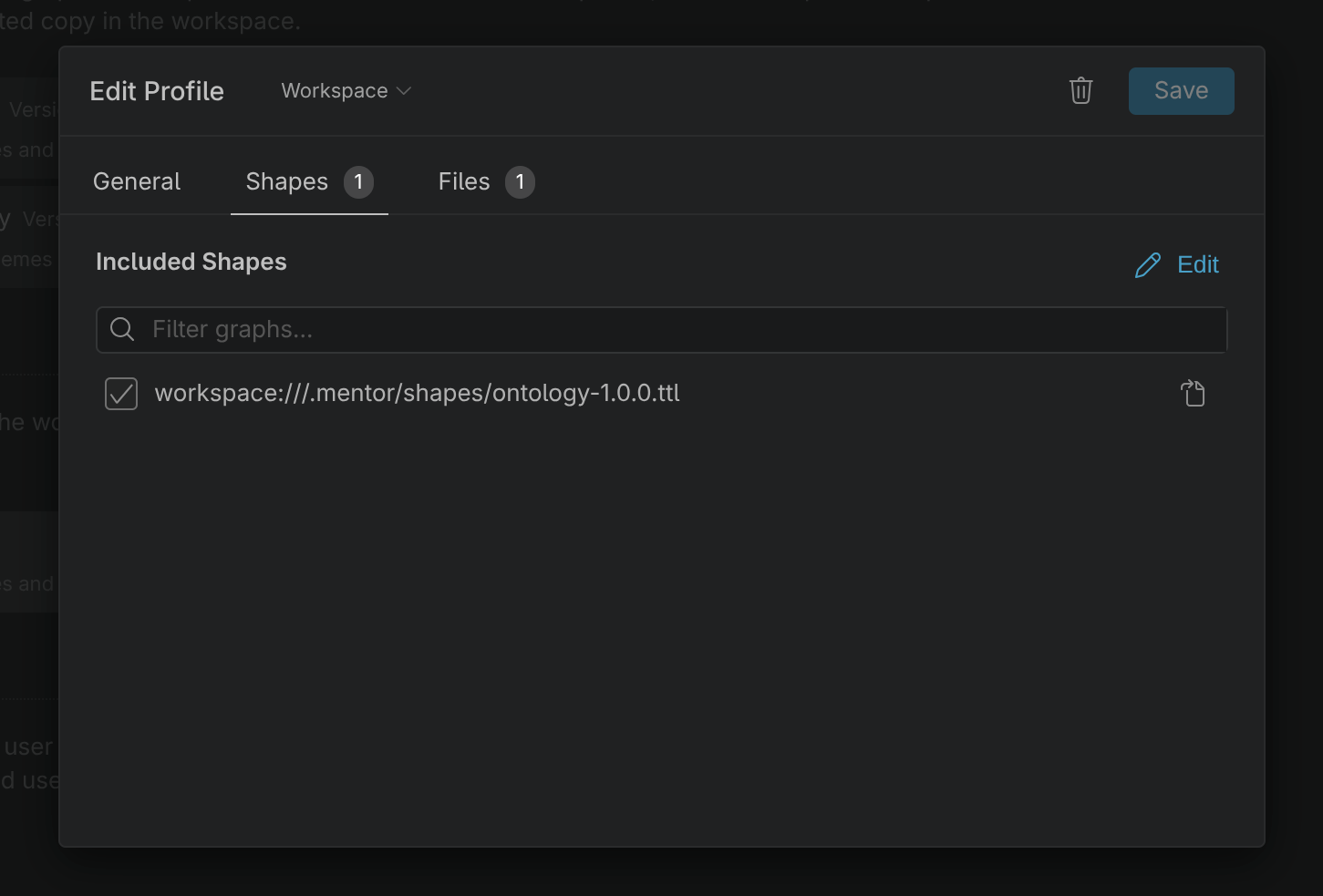
By default the list shows the graphs already assigned to the profile. Edit switches to the full list of available shape graphs so new ones can be checked, Done returns to the assigned graphs; the search box filters within the current list. Each row shows the graph URI, which also tells you where the shapes come from:
| URI | Description |
|---|---|
workspace:///… |
A shape file in the workspace, for example the frozen copy created from a template. |
user:///shapes/… |
A personal shape file stored in your user settings and available in every workspace. |
http… |
A built-in vocabulary graph loaded by the workspace index. |
Rows offer a Open in editor action, and a graph referenced by the profile but no longer present is marked as Missing. A user-scope profile additionally offers New Shape, which creates a new user shape file seeded with a commented node shape skeleton and assigns it to the profile.
User shape files are managed with the following commands from the Command Palette:
| Command | Description |
|---|---|
| New User Shape File… | Creates an empty user shape file (.ttl, .nt or .nq). |
| Import Workspace Shape File into User Shapes… | Copies a workspace shape graph into your user shapes, leaving the original untouched. |
| Clean Up User Shapes… | Lists user shape files that no profile references any more and deletes the confirmed ones. Files still referenced by a profile of another workspace are marked as protected. |
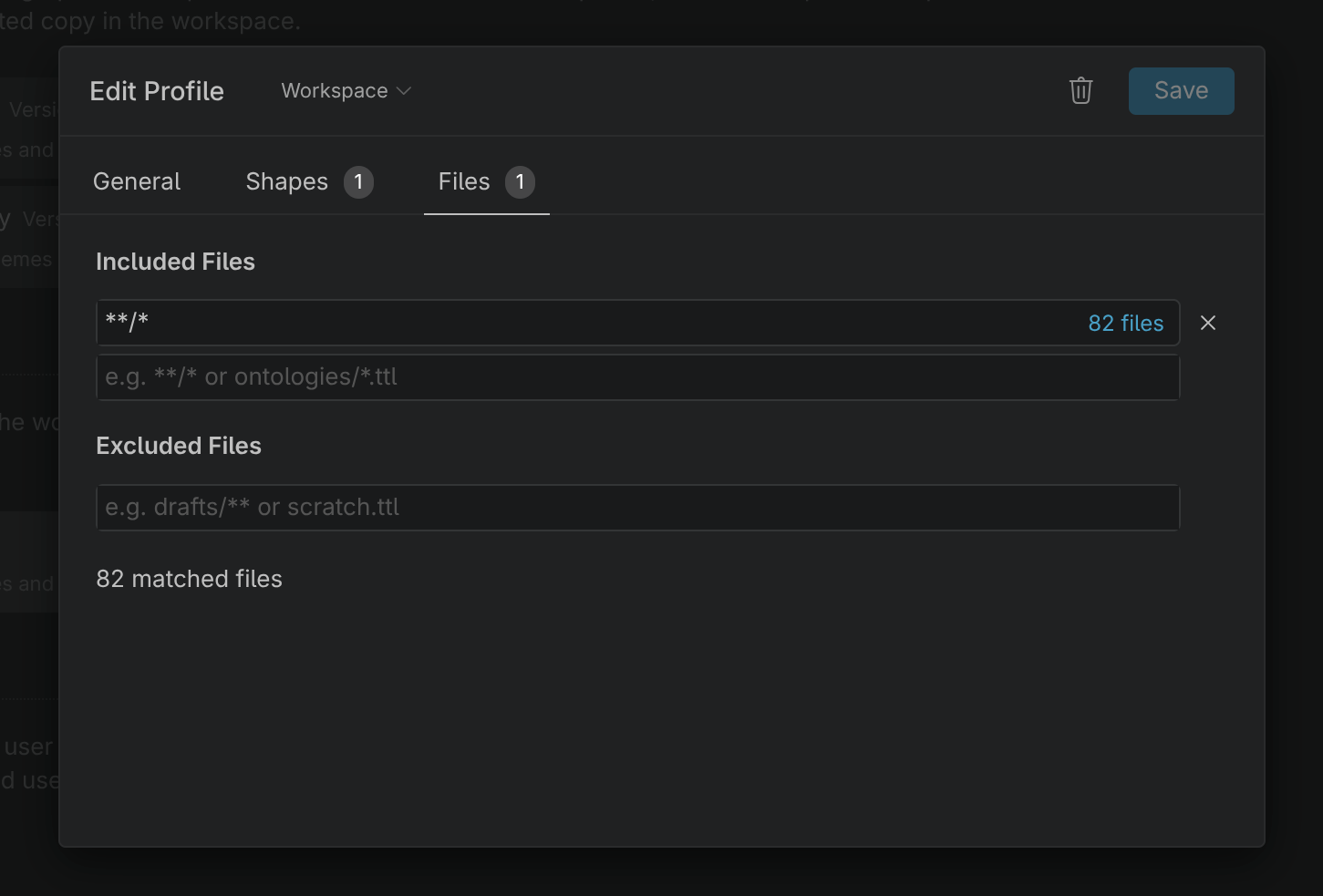
The Files tab decides which documents the profile applies to, using two lists of workspace-relative paths and glob patterns:
| List | Description |
|---|---|
| Included Files | The documents the profile applies to. A profile without include entries matches nothing. |
| Excluded Files | Documents carved out of the included set. Entries use the same syntax — without a ! prefix. |
Type a pattern into the add box and press Enter to commit it; existing entries are edited in place and removed with the button. While a list is still empty, the suggestions **/*, **/*.ttl and **/*.(ttl|n3) are offered as one-click starting points.
Every entry shows the number of workspace files it currently matches, and the summary below the lists shows the effect of the profile as a whole — including whatever is still being typed into an add box, so the effect of a pattern is visible before it is committed.
Path Patterns
Section titled “Path Patterns”Include and exclude entries are matched against the workspace-relative path of a document, using standard glob syntax:
| Pattern | Matches |
|---|---|
**/* |
Every RDF document in the workspace. |
**/*.ttl |
Every Turtle document, at any depth. |
ontologies/* |
The RDF documents directly inside ontologies, but not in its subfolders. |
ontologies/** |
The RDF documents in ontologies and all of its subfolders. |
models/data.ttl |
Exactly this one file. |
notebooks/demo.mentor#cell-1 |
A single notebook cell, addressed by its cell slug. |
The following rules apply:
- A single
*does not cross a/; use**/to match at any depth. - An entry whose last path segment contains no literal
.is extension-agnostic: the recognized RDF extensions are appended automatically, soontologies/*behaves likeontologies/*.{ttl,…}and never matches aREADME.md. A trailing**is treated the same way. - An entry without a literal
#also matches the notebook cells of the files it matches, so a pattern covering a notebook covers its cells as well. - Paths are always workspace-relative. Absolute paths and
..segments are rejected — the entry is flagged with a warning and never matches. - A profile applies to a document when at least one include entry matches it and no exclude entry does.
Automatic Validation
Section titled “Automatic Validation”Both automatic modes are enabled per profile on the General tab of the profile dialog:
| Mode | Description |
|---|---|
| Auto validate on startup | Once workspace indexing has completed, every file matched by a profile with this option is validated in a single batch run. Its outcome is reported in the dashboard and the status bar. |
| Auto validate on document change | A matched document is re-validated while it is edited. Diagnostics are published quietly, without notifications. |
A document is validated automatically only when all of the following hold:
- Enable SHACL Validation is on.
- A profile with the corresponding option matches the document, and that profile has at least one shape graph.
- The document is free of syntax errors — validating a document that does not parse would only report follow-up problems.
- The data graph does not exceed the Maximum Validation Graph Size.
Code Lenses
Section titled “Code Lenses”While validation is enabled, RDF documents show the validation state at the top of the file, next to the other code lenses:

| Lens | Description |
|---|---|
| Validate | Validates the document against its effective shape graphs. Only shown when shapes are configured. |
| Conforms | The last run found no issues. Click to open the report. |
| N issue(s) | The last run found issues. Click to open the report. |
| Validation skipped (size limit) | Automatic validation was skipped because the data graph exceeds the maximum graph size. Click to validate anyway. |
Validation: <profiles> |
The profiles applied to this document. The tooltip lists the effective shape files and the path patterns that matched. Click to change the assignment. |
| Validation: not configured | No profile covers this document. Click to configure one. |
A status lens that reports a conforming document while shape graphs are missing is shown as a warning instead — a run that could not load all configured shapes is never presented as a clean pass.
In addition, a N shapes lens is displayed next to a subject that is targeted by SHACL shapes, listing those shapes when it is clicked.
Configuring Shapes from the Editor
Section titled “Configuring Shapes from the Editor”Clicking the Validation lens — or running Configure SHACL Shapes — opens a quick pick that assigns the current document to validation profiles:
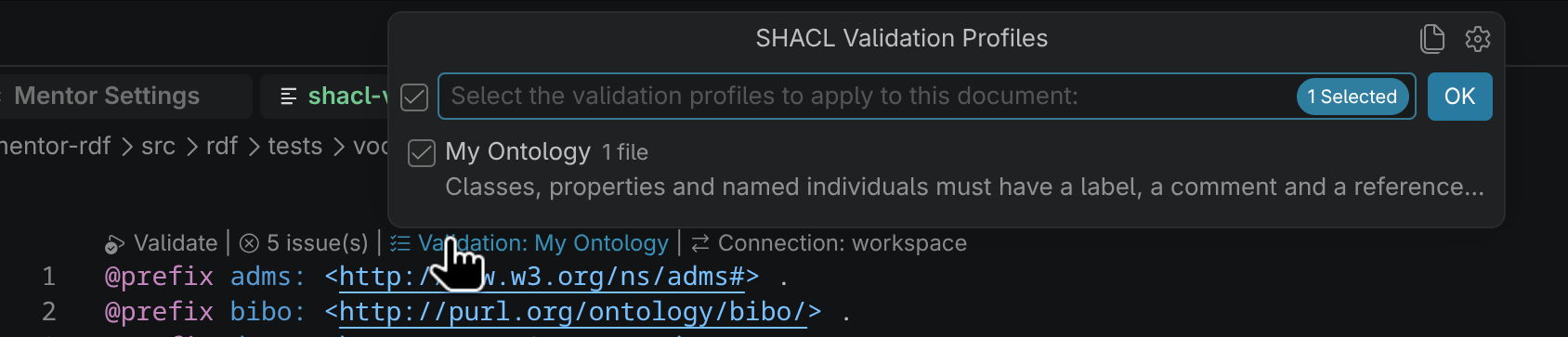
Checking a profile adds the document’s path to the profile’s Included Files, or lifts an exclusion when the document was only excluded. Unchecking a profile removes that entry again, and adds the document to Excluded Files when one of the profile’s patterns would still match it. The button switches to a picker of individual shape files, which manages a profile that only applies to the current document, and the button opens the Profiles settings page.
Validation Reports
Section titled “Validation Reports”Clicking the status lens of a validated document offers three ways to inspect the result:
| Action | Description |
|---|---|
| View Problems | Focuses the Problems panel, where the results are listed as diagnostics. |
| Export as Turtle | Opens the raw SHACL validation report graph (text/turtle) in a new editor. |
| Export as Plain Text | Opens a readable summary of the report in a new editor. |
Settings
Section titled “Settings”The validation settings are stored in the following configuration keys: