
Workspace Index
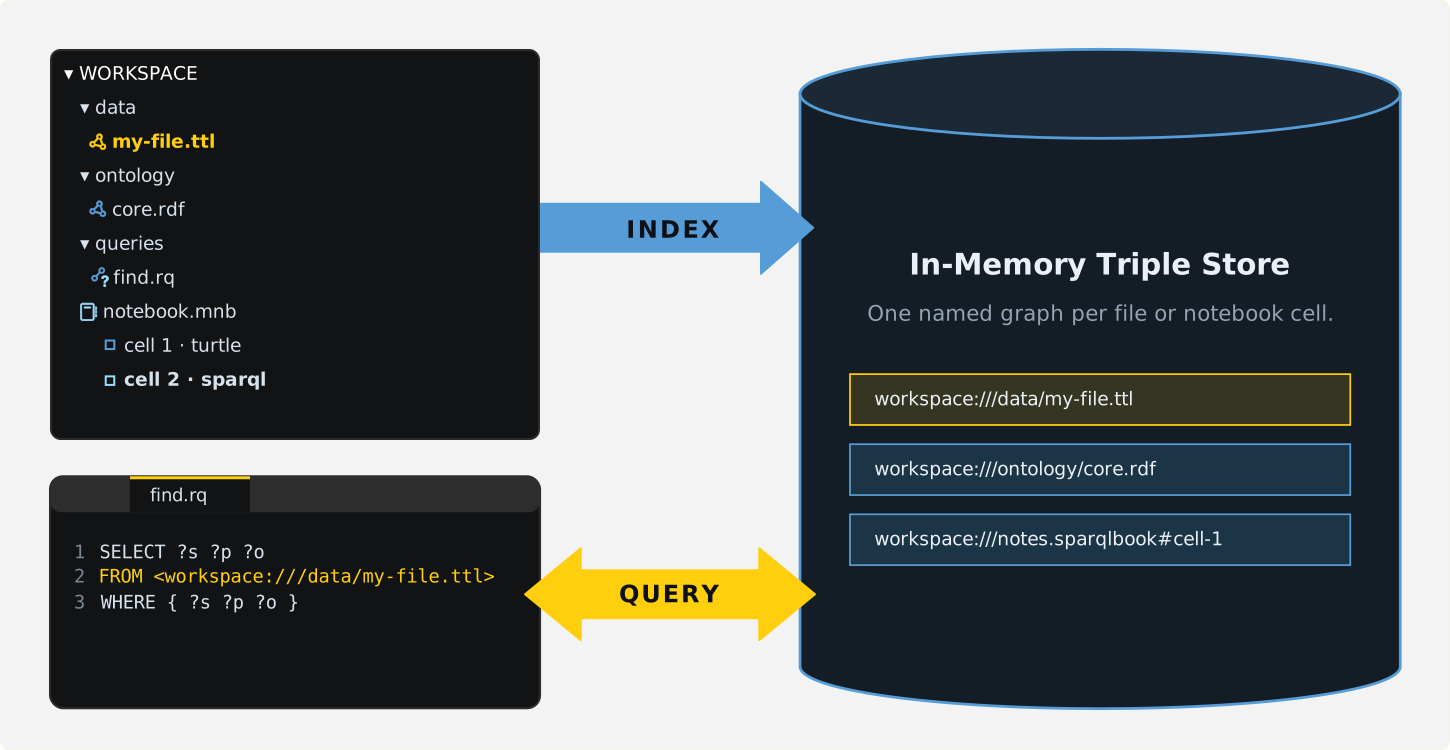
Upon opening a workspace, Mentor automatically builds a index of all RDF terms used across the files in your workspace. This index enables features like code lenses and the “Find Usages” and “Go to Definition” commands, allowing you to quickly navigate and explore your knowledge graph project.
The index is kept entirely in memory and will be rebuilt each time you open the workspace. When files have changed, are added or removed the index is updated incrementally to reflect these changes.
In addition to the term maps, Mentor also maintains an in-memory triple store containing all RDF triples found in the workspace. This allows you to run SPARQL queries against all of your files in the workspace directly from within Visual Studio Code.
Indexed Data
Section titled “Indexed Data”Mentor keeps track of the following RDF related data in your workspace:
| Data | Description |
|---|---|
| References | A mapping of IRIs to the files and line numbers where they are used, either as a subject or an object of a triple. |
| Definitions | A mapping of IRIs to the files and line numbers where they are defined as a subject with an rdf:type predicate. |
| Prefixes | A mapping of prefixes to their corresponding namespace IRIs, along with the files where they are declared. |
| Triples | An in-memory representation of all RDF triples found in the workspace, allowing for querying the data with SPARQL. |
Indexing Status
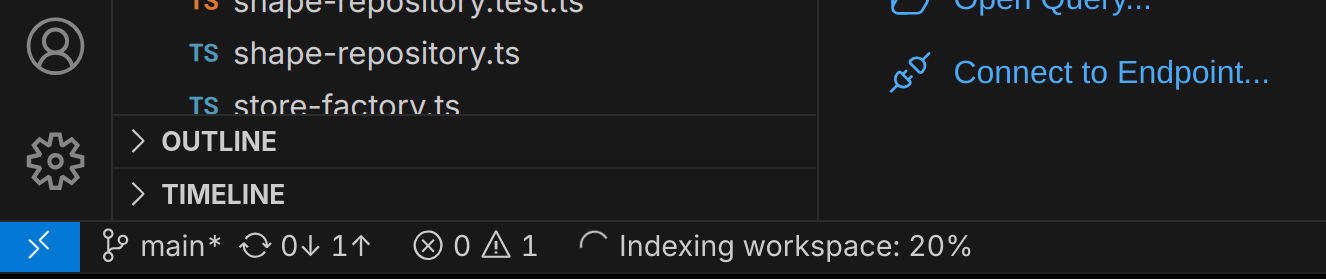
Section titled “Indexing Status”The indexing process runs in the background and may take a few moments to complete, depending on the size of your workspace. You can monitor the indexing status in the Mentor status bar at the bottom of the Visual Studio Code window:
Indexing Settings
Section titled “Indexing Settings”Clicking on the workspace index status bar item will open the Indexing page in the Mentor settings, which provides statistics about the current index run and all relevant configuration options:
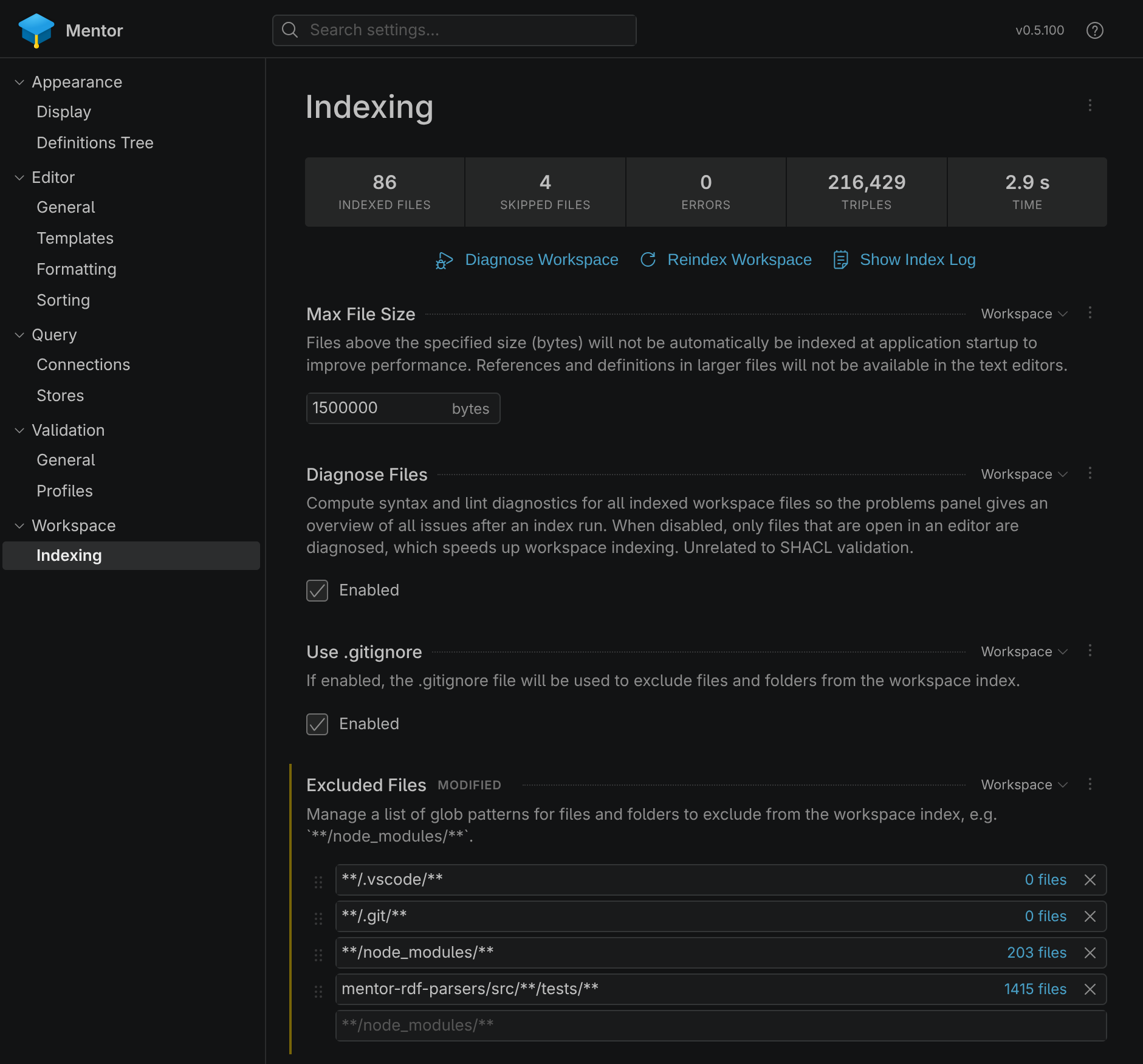
Below the index statistics, the settings page offers the following commands:
| Command | Description |
|---|---|
| Diagnose Workspace | Try to load every file in the workspace to detect syntax errors. Does not execute SHACL validation. |
| Reindex Workspace | Clear internal triple store and re-run a the indexing proccess, including the configurated SHACL validation. |
| Show Index Log | Open a panel which contains a detailed output of the last indexing run. |
Linting and Validation Results
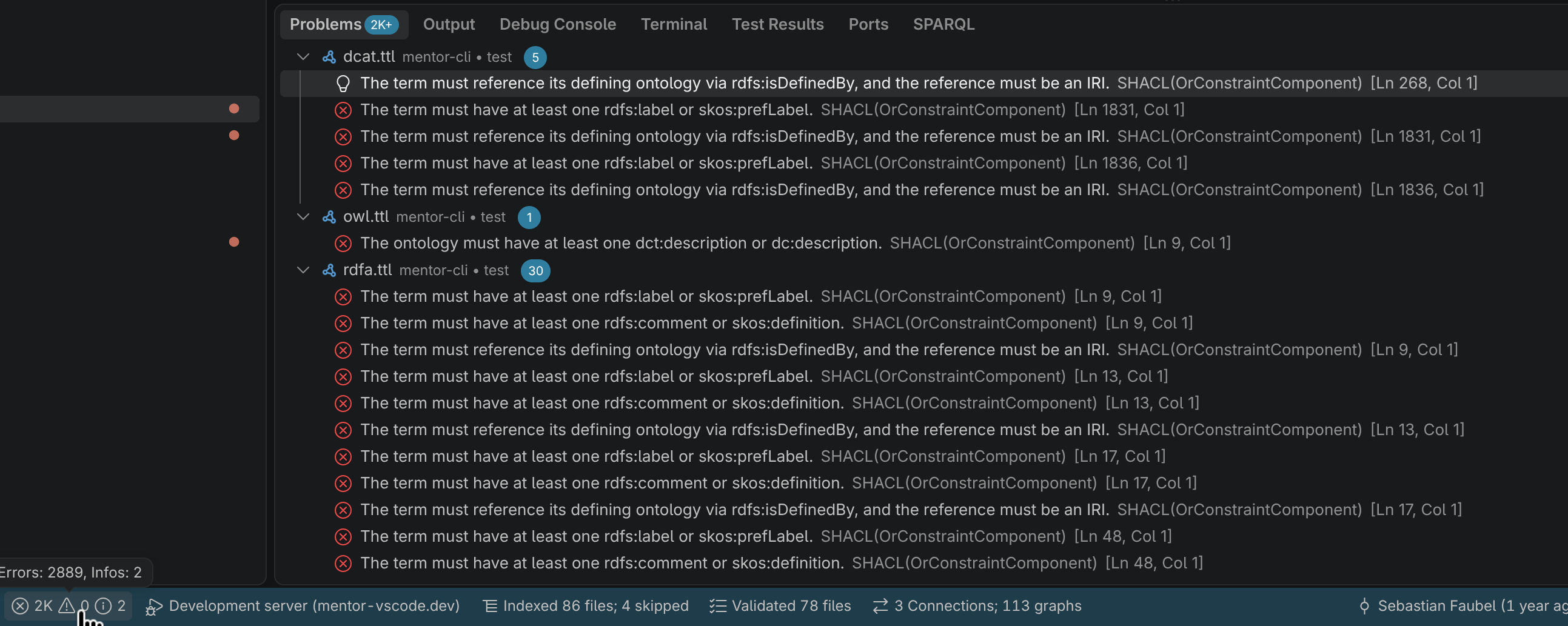
Section titled “Linting and Validation Results”All detected parsing, linting or validation results from the indexing run can be accessed via the standard Visual Studio Code Problems panel:
Generated Graphs
Section titled “Generated Graphs”When indexing RDF files then the contents of all files are stored in an internal in-memory triple store.
Framework Ontologies
Section titled “Framework Ontologies”Mentor automatically loads a set of built-in RDF ontologies into the triple store to provide foundational definitions and relationships for common terminology. These ontologies include:
| Ontology | Graph IRI |
|---|---|
rdf |
http://www.w3.org/1999/02/22-rdf-syntax-ns# |
rdfa |
http://www.w3.org/ns/rdfa# |
rdfs |
http://www.w3.org/2000/01/rdf-schema# |
owl |
http://www.w3.org/2002/07/owl# |
shacl |
http://www.w3.org/ns/shacl# |
skos |
http://www.w3.org/2004/02/skos/core# |
skos-xl |
http://www.w3.org/2008/05/skos-xl# |
xsd |
http://www.w3.org/2001/XMLSchema# |
dcat |
http://www.w3.org/ns/dcat# |
The IRIs of these ontologies are used as named graphs in the triple store. You can query these graphs directly using SPARQL to access the definitions and relationships they provide.
Documents
Section titled “Documents”For every RDF document in your workspace, Mentor creates an internal named graph that contains all
triples found in that document. The graph IRI is derived from the document’s URI in the workspace.
For example, for a document located at /documents/example.ttl, the corresponding graph IRI would be:
workspace:///documents/example.ttlThe URI follows standard URI syntax: workspace:// is the scheme and authority separator, and the
third / begins the absolute path relative to the workspace root.
The file: IRI scheme is not used here because it does not support relative paths and thus cannot
provide workspace-independent references.
Inference
Section titled “Inference”To ensure that trees correctly displays all kinds of classes, such as OWL restrictions or equivalent classes, Mentor applies structural reasoning when parsing RDF documents. This means that a reasoning engine infers additional class, subclass relationships and property types based on the OWL and SHACL semantics.
The results of the reasoning process are stored in a separate graph that follows the same
scheme as the document graph but appends ?inference to the graph IRI. For example:
workspace:///documents/example.ttl?inferenceIf the data graph IRI already contains query parameters, then the inference parameter is simply
appended to the existing ones.
Multi-Root Workspaces
Section titled “Multi-Root Workspaces”When working with monorepos or projects that use multiple VS Code .code-workspace files,
graph IRIs need to be consistent across all workspaces. By default, workspace URIs are resolved
relative to the first open workspace folder, which can lead to different graph IRIs for the same
file when opened from different .code-workspace configurations.
To solve this, you can configure a monorepo root offset in your .code-workspace file. This
tells Mentor where the common project root is relative to the workspace file, ensuring that all
workspaces sharing the same root produce identical graph IRIs.
Note that this is a deliberate trade-off: by anchoring all workspace URIs to the monorepo root,
SPARQL queries become portable across all workspace configurations — but the paths in the generated
workspace:/// URIs reflect the monorepo folder structure, which may differ from the folder hierarchy
visible in the VS Code Explorer. For example, a file shown under a workspace folder called shared
might have a graph IRI like workspace:///packages/shared/core.ttl if the monorepo root is above
the workspace folder. In practice, this trade-off is rarely noticeable because the workspace URIs are
primarily used internally by the triple store and in SPARQL queries, not in day-to-day navigation.
Configuration
Section titled “Configuration”Add the mentor.workspace.rootOffset setting to the settings section of your .code-workspace file.
The value is a relative path from the .code-workspace file’s directory to the monorepo root.
For example, given this project structure:
monorepo/├── frontend.code-workspace├── tools/│ └── backend.code-workspace├── ui/│ └── components.ttl├── shared/│ └── core.ttlConfigure each workspace file as follows:
// frontend.code-workspace (at the monorepo root){ "folders": [ { "path": "ui" }, { "path": "shared" } ], "settings": { "mentor.workspace.rootOffset": "." }}// tools/backend.code-workspace (one level deep){ "folders": [ { "path": "../api" }, { "path": "../shared" } ], "settings": { "mentor.workspace.rootOffset": ".." }}With this configuration, the file shared/core.ttl produces the same graph IRI regardless of
which workspace is open:
workspace:///shared/core.ttlThis means SPARQL queries using FROM <workspace:///shared/core.ttl> will work identically
in both workspaces and can be safely committed to version control.
Memory Usage
Section titled “Memory Usage”The memory consumption depends on the size of your workspace and the number of RDF terms used. For large workspaces, this may lead to increased memory usage. You can monitor the memory consumption of Mentor in the Visual Studio Code Process Explorer.
Settings
Section titled “Settings”To avoid long indexing times or out-of-memory errors in large workspaces, you can configure Mentor to exclude certain files or folders from being indexed. The following settings are available: