
Workspace Tree
The workspace tree in Mentor provides a hierarchical view of all supported file types within your workspace. It is a filtered view that is similar to the standard Visual Studio Code Explorer, focusing specifically on files relevant to RDF knowledge graph development.
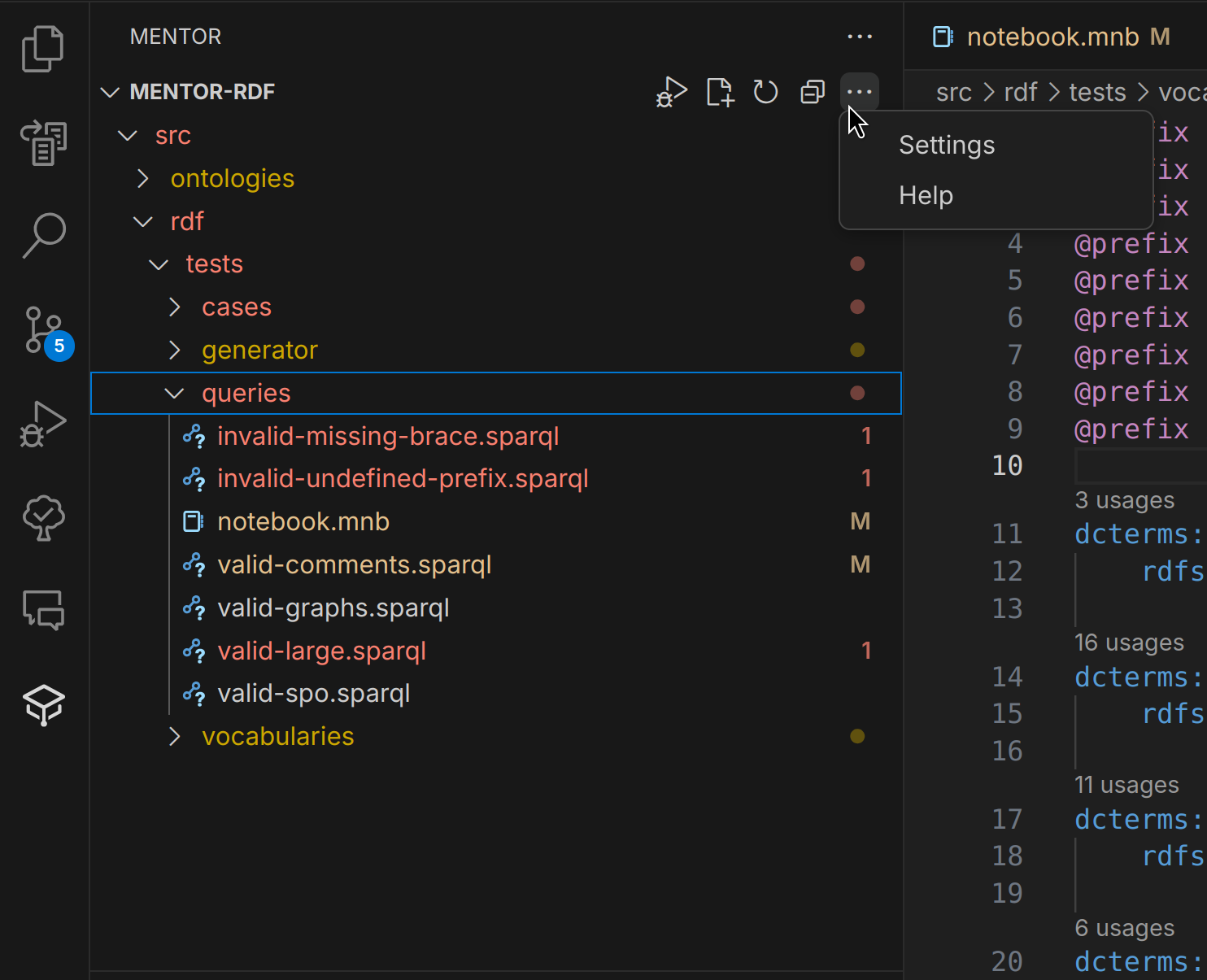
Title Bar
Section titled “Title Bar”The title bar of the workspace tree displays the current workspace folder name in the same way the standard Visual Studio Code Explorer does. It also provides quick access to common actions:
Primary Actions
Section titled “Primary Actions”The workspace tree offers several actions that are specific to managing your RDF files:
| Action | Description |
|---|---|
| Find Problems | Forces indexing of all files in the workspace and highlights any issues found in the files within the tree view. |
| Create Document | Opens a dialog to create a new RDF document in the selected folder. You can choose from various supported RDF serialization formats such as Turtle, JSON-LD, or RDF/XML. |
| Manage Connections | Manage active connections to SPARQL endpoints. |
| Refresh Tree | Manually refreshes the workspace tree to reflect any recent changes in the files. |
| Collapse / Expand All | Collapse or Expand all nodes in the definitions tree. |
More Actions
Section titled “More Actions”Additional actions that can be accessed through the menu in the titlebar:
| Action | Description |
|---|---|
| Settings | Opens the Mentor settings where you can configure various options related to the workspace tree and indexing. |
| Help | Opens mentor-vscode.dev in your default browser. |
Context Menu Actions
Section titled “Context Menu Actions”The context menu of the tree items provides the following commands:
| Action | Description |
|---|---|
| Rename… | Rename the current file or folder. |
| Exclude from Index | Exclude the current file or folder from the workspace index. |
Highlighted Issues
Section titled “Highlighted Issues”Besides providing quick access to your RDF files, the workspace tree also shows issues and warnings detected in the files, allowing you to easily identify and navigate to problematic areas in your code.
| Colour | Description |
|---|---|
| Red | Indicates errors in the RDF files, such as syntax errors or invalid RDF constructs. |
| Yellow | Indicates warnings, such as deprecated terms or potential issues that may not prevent parsing but could lead to problems later. |