
SPARQL Connections
The SPARQL Connections View lets you manage all SPARQL endpoints that can be selected in query files or Mentor notebooks to execute queries against local or remote endpoints:
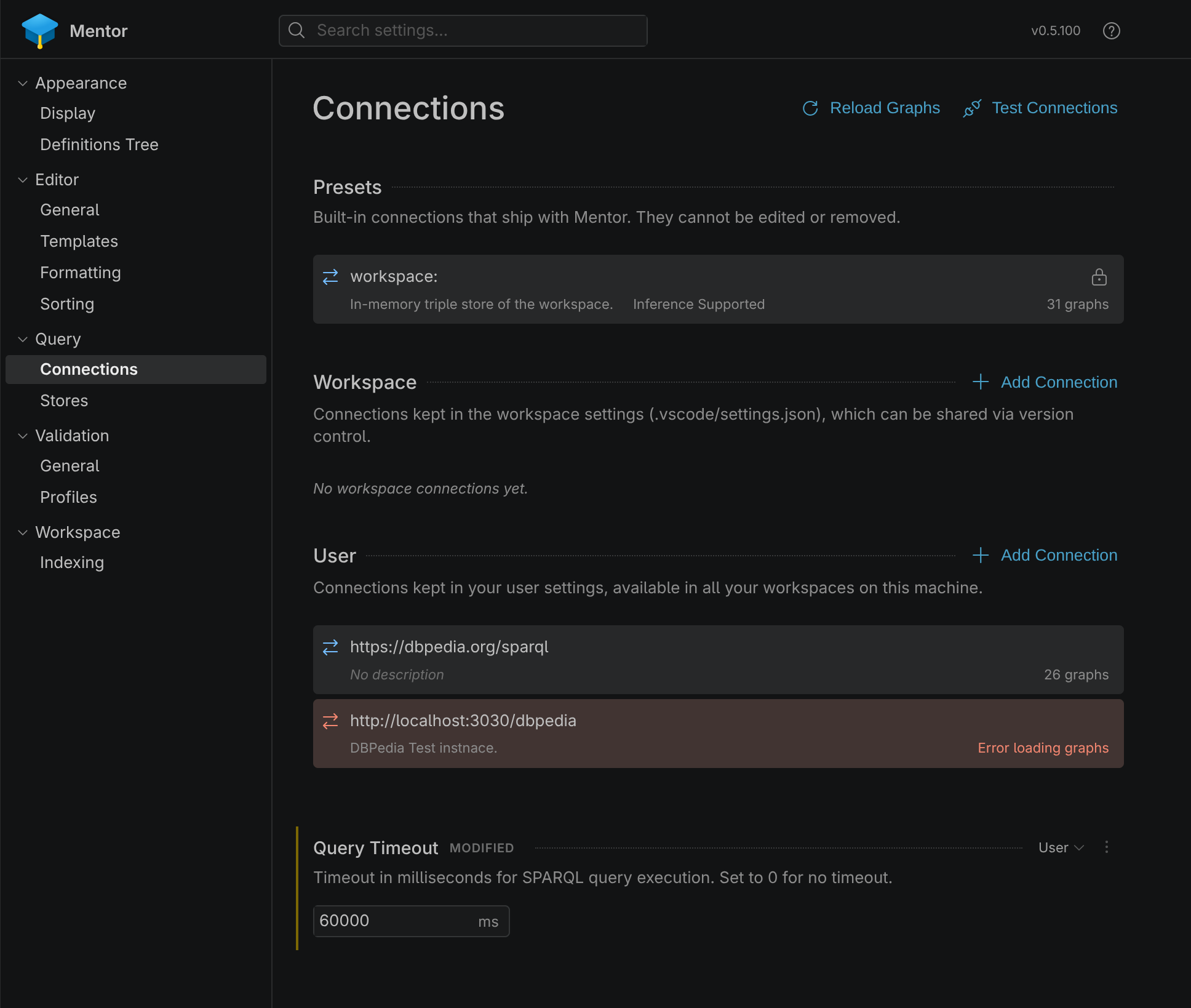
The view is divided into two sections: User and Workspace.
| Type | Description |
|---|---|
| User | User connections are only available to the current user and are typically stored on the user’s local machine and can be synced accross devices with Settings Sync. |
| Workspace | Workspace connections are stored in the .vscode directory and can thus be shared with other users in version controlled repositories. |
View Actions
Section titled “View Actions”The connections tree offers several actions that are visible as icons in the title bar:
| Action | Description |
|---|---|
| Test Connections | Executes a connection test on all connections in the view. |
| Reload Graphs | Reload all graphs from all connections which have this feature enabled. |
| Add Connection | Configure a new SPARQL connection. |
Connection Actions
Section titled “Connection Actions”When you select or hover a connection in the list view, additional actions will become available in the connection header:

| Action | Description |
|---|---|
| List Graphs | Executes a SPARQL query to list all graphs in the selected connection. |
| Test Connection | Executes a connection test on the selected connection. |
| Delete Connection | Deletes the selected SPARQL connection. |
Editing Connections
Section titled “Editing Connections”When you select an existing connection in the connections manager or when you click on the ‘Add Connection’ icon, the connection details will be displayed in a new dialog window.
From here, you can modify the connection settings, such as the SPARQL endpoint URL, authentication credentials, and other parameters. Once you have made your changes, you can save them to update the connection.
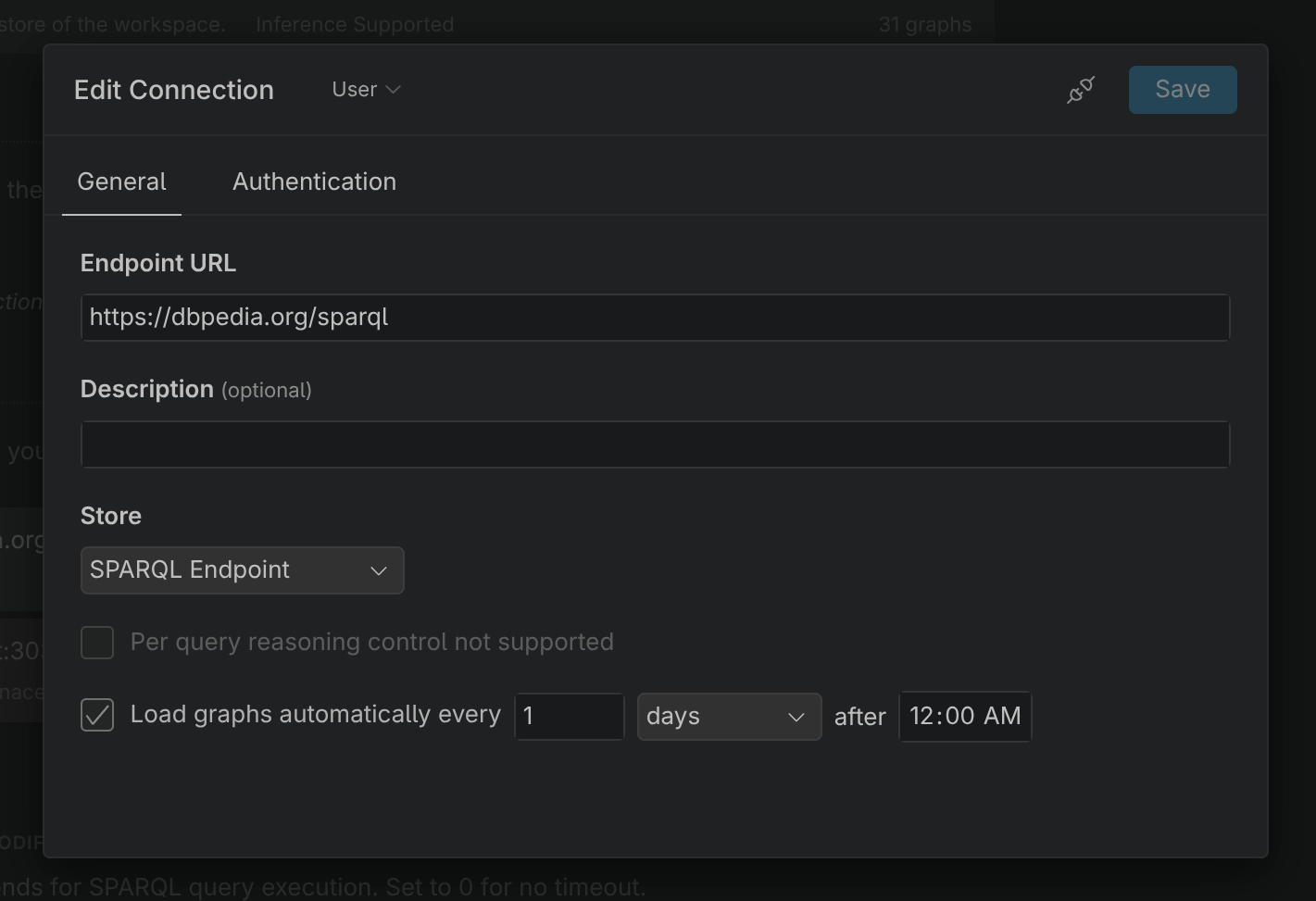
The following configuration options are available in the connection settings:
| Setting | Description |
|---|---|
| Endpoint URL | The HTTP(s) URL of the SPARQL endpoint to connect to. |
| Description | An optional description which helps to keep connections apart. |
| Store | The store profile to be used for this connection, defaults to SPARQL Endpoint. |
| Enable query reasoning by default | If supported by the store, indicates if the connection should enable inference as a standard. |
| Load graphs automatically | When enabled, Mentor will load and cache the graphs for this connection to support auto-complete discovery and support SPARQL query linting. |
Authentication
Section titled “Authentication”The following authentication methods are supported for SPARQL connections:
| Type | Description |
|---|---|
| None | No authentication. |
| Basic | Basic HTTP(s) authentication using a username and password. |
| Bearer Token | Authentication using a bearer token. |
| Entra SSO | Authentication using Microsoft Entra ID single-sign-on provider that is built into Visual Studio Code. |
| Entra Client Credentials | Authentication using Microsoft Entra Client Credentials flow. |
Testing Connections
Section titled “Testing Connections”Once you have configured a connection, you can test it to ensure that it is working correctly. To test a connection, follow these steps:
- Click on the button on the list item or in the connection detail view.
- The connection status will be displayed as a notification.
If the test fails, you may need to adjust the connection settings and try again.
Deleting Connections
Section titled “Deleting Connections”To delete a connection from the connections view you can either use the icon in the connections manager or click on the same icon in the connection detail view.
When asked, confirm the deletion when prompted. Please keep in mind that once a connection is deleted, it cannot be recovered, so make sure you really want to delete it before confirming.