Notebooks
Mentor supports interactive notebooks that allow you to combine executable SPARQL queries,
RDF data snippets and Markdown content for data science, query development and learning RDF.
Mentor notebooks have the file extension .mnb.
Creating Notebooks
Section titled “Creating Notebooks”There are multiple ways to create notebooks in Mentor:
From the Mentor View
Section titled “From the Mentor View”- Select the Mentor icon in the sidebar.
- Click on the button in the tree view header of the Workspace Tree.
- Select “Mentor Notebook” from the list.
From the Editor
Section titled “From the Editor”- Open a SPARQL or RDF data file in the editor
- Click on the icon in the upper right corner of the editor
From the Command Palette
Section titled “From the Command Palette”- Open the Command Palette (Ctrl+Shift+P)
- Type “Create Notebook”
- Select “Mentor: Create Notebook” from the dropdown
Creating Cells
Section titled “Creating Cells”Mentor notebooks are implemented as native Visual Studio Code Jupyter notebooks. You can create new cells by either clicking on the or buttons in the notebook toolbar or by hovering at the bottom edge of existing cells:
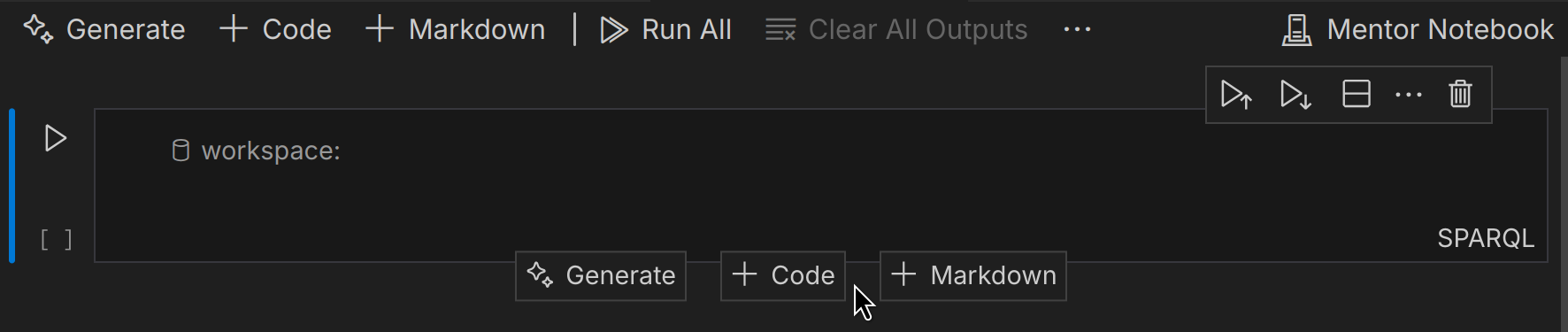
The buttons in the toolbar append new cells to the notebook, while clicking on the buttons at the bottom edge of existing cells will create a new cell right below the hovered cell.
Markdown
Section titled “Markdown”Markdown cells allow you to write rich text using Markdown which allows you to add headings, lists, links, images, and more. It’s an ideal format for structured text that focuses on content rather than presentation.
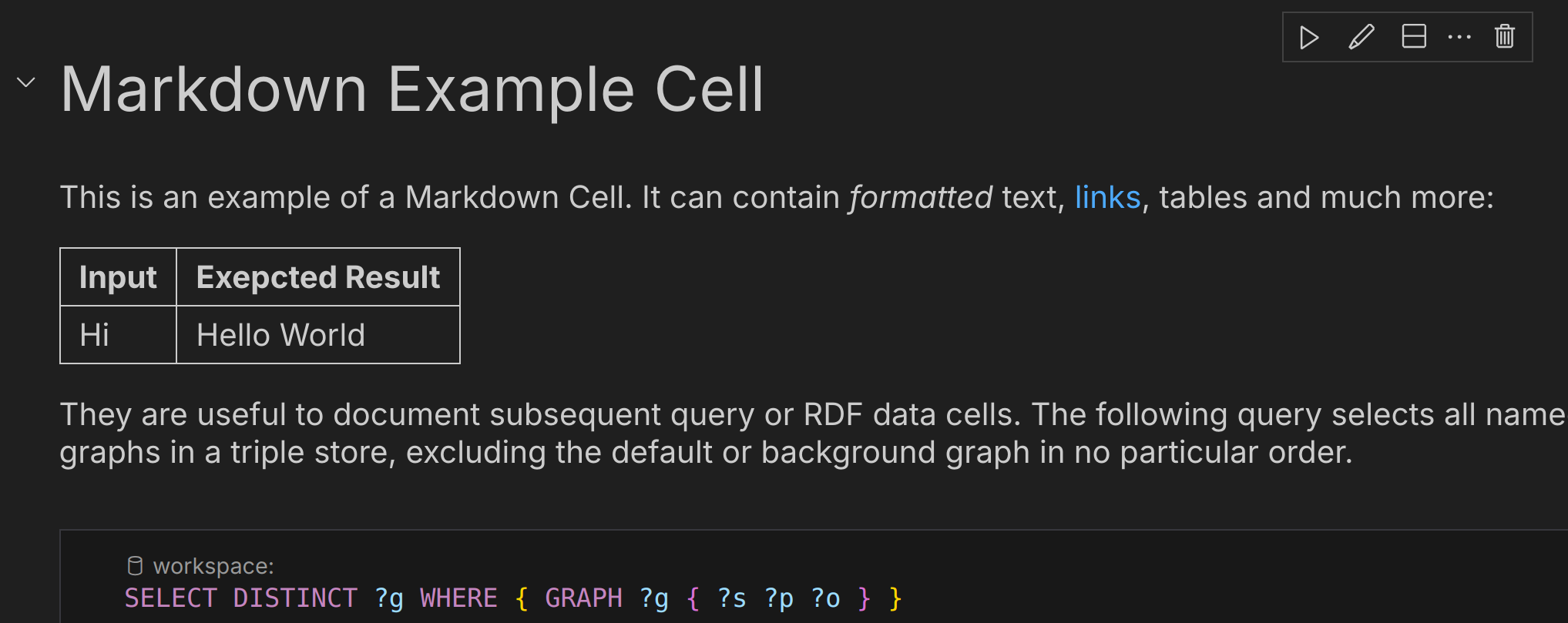
It is common practise to use Markdown cells for documenting competency questions the subsequent queries provide answers for. In general, documentation content of the notebooks should focus on the ‘why’ some modeling or queries are structured the way they are instead of the ‘how’ which is usually covered by the code itself.
SPARQL Queries
Section titled “SPARQL Queries”SPARQL cells allow you to write and execute SPARQL queries against the Workspace Index or any connected SPARQL endpoint. To enable SPARQL cells, simply create a new code cell and select “SPARQL” as the cell language.
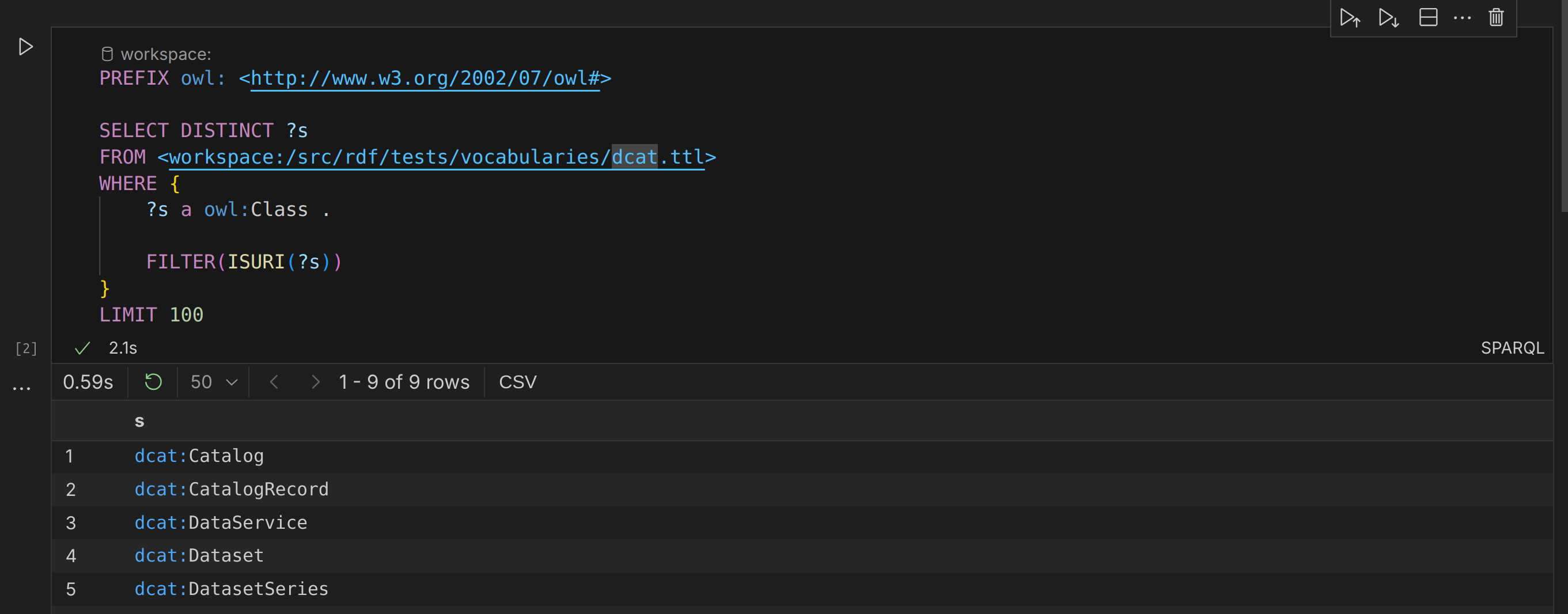
All editor features are available within SPARQL cells, including syntax highlighting, autocompletion, and error checking. To execute a SPARQL cell, select the connection in the Code Lens located at the top of the cell and click the button in the cell toolbar.
RDF Data
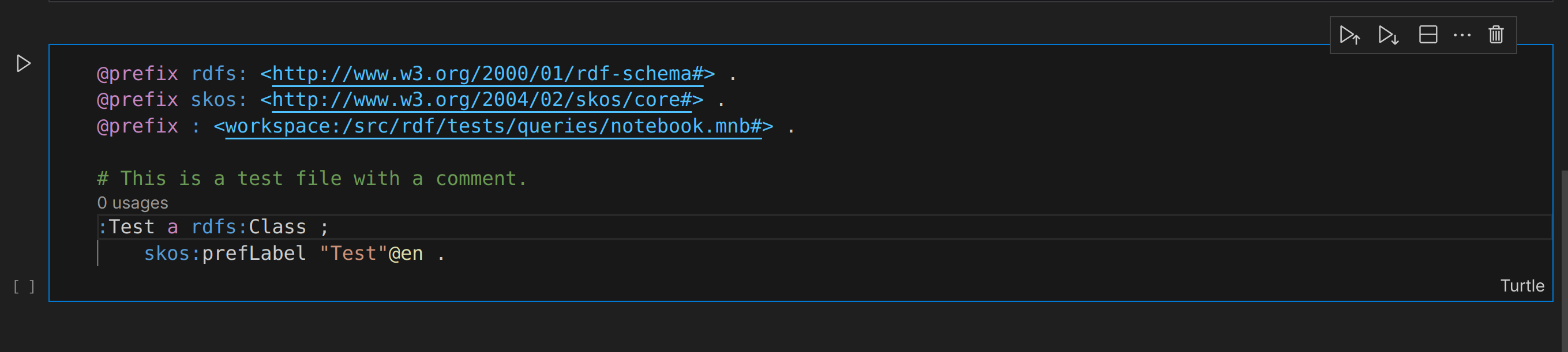
Section titled “RDF Data”RDF Data cells allow you to write data in all supported serialization formats. To create an RDF Data cell, simply create a new code cell and select any of the RDF serialization formats as the cell language.