
SPARQL Query
SPARQL is the W3C standard query language for RDF data, that is easily readable and familiar for SQL developers. It allows for querying and manipulating RDF graphs, making it a powerful tool for working with linked data.
Mentor supports you in formulating SPARQL queries through auto-complete suggestions that come from the ontologies in your workspace and also allows you to execute these queries against datasets in SPARQL endpoints, including the internal Workspace Index which effectively turns your workspace into an editable RDF graph.
There are two main ways to execute SPARQL queries in Mentor, you can either execute queries from
- SPARQL Documents: You can write and execute SPARQL queries directly in the editor.
- Notebook Cells: You can also execute SPARQL queries from Mentor notebook cells.
Both methods are fundamentally similar and only differ in where the query results are displayed. The fundamentals of SPARQL query executing is covered in this document whereas the specifics of executing queries in notebook cells will be covered in the Notebooks section.
Executing SPARQL Documents
Section titled “Executing SPARQL Documents”You can directly execute SPARQL files from the editor. For this you either need to open an existing .sparql or .rq file or create a new one and select SPARQL as the language.
Select Connection
Section titled “Select Connection”In Mentor SPARQL queries are by default executed against the internal Workspace triple store. This provides you with the ability to instantly query all the data in your workspace without any additional configuration. If you want to query external SPARQL connections, you can configure additional SPARQL endpoints in the connection settings.
The SPARQL endpoint the query will be executed against is displayed as a Code Lens on the top of the document.
By default this will display the internal Workspace triple store, indicated by workspace:. To select another connection, just click on the Code Lens
and choose the desired connection from the dropdown.
Execute Query
Section titled “Execute Query”You can execute the query by clicking the “Run Query” button in the editor toolbar or by using the keyboard
shortcut Ctrl+Super (Windows/Linux) or Cmd+Super (Mac).
The query status and results will then be displayed in the SPARQL Output Panel.
SPARQL Output Panel
Section titled “SPARQL Output Panel”The SPARQL Output Panel is a dedicated area in the terminal panel of Visual Studio Code. It provides an overview of your recently executed queries and a history of all executed SPARQL queries, either queries executed from SPARQL documents or notebook cells.
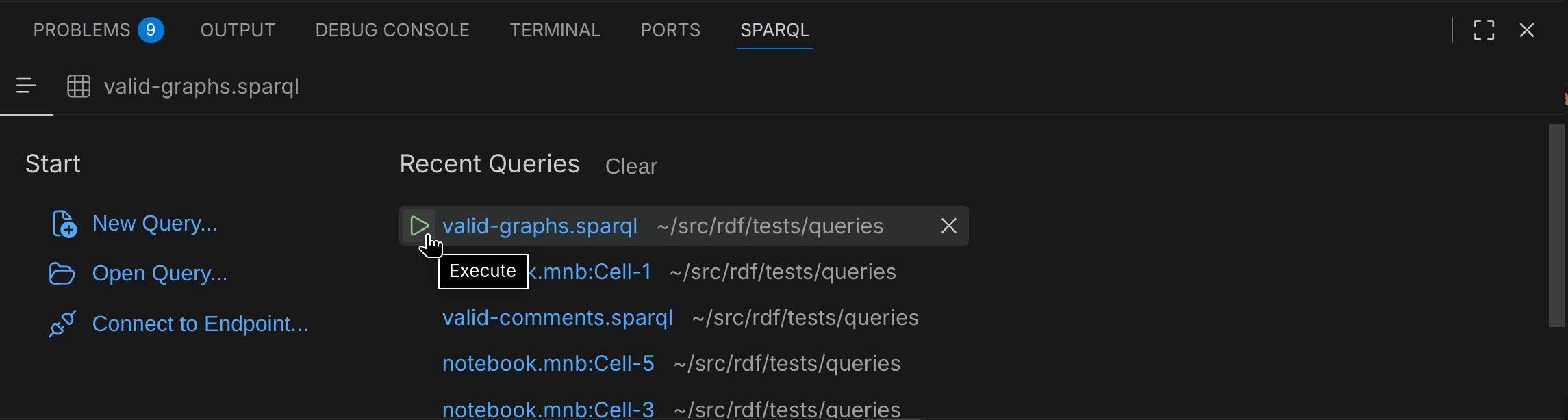
| Action | Description |
|---|---|
| New Query | Create a new SPARQL query document with the default template. |
| Open Query | Opens a searchable pop-up menu that lists all available SPARQL query documents in the workspace. |
| Clear | Clears the query history in the output panel. |
| Execute Query | Executes the selected SPARQL query document. |
| Remove Query | Removes the selected SPARQL query document from the query history. |
| Maximise Panel | Toggles the full-screen mode of the panel. |
Result Views
Section titled “Result Views”For every executed SPARQL query, the results are shown in dedicated tabs so you can have multiple result views open at the same time and compare the results. Depending on the type of query, the results are displayed in different views. These are explained below.
Bindings
Section titled “Bindings”For SPARQL Select queries, the results are returned as a set of variable bindings. Each binding is a mapping from a variable name to a value, and the result is typically displayed as a table.

Toolbar
Section titled “Toolbar”Above the table there is a toolbar which provides you with basic controls and information about the query execution, such as the execution time and the number of results.
| Item | Description |
|---|---|
| 1.23s | Execution time of the query from sending the query to receiving the response. This usually differs from the time to render as this does not include post-processing steps. |
| Refresh | Re-executes the current query and updates the results. |
| Previous Page | Navigates to the previous page of results. |
| Next Page | Navigates to the next page of results. |
| 1-100 of 123 rows | Displays the visiable range and the total number of results. |
| CSV | Exports the current query results as a CSV file and opens it in a new editor. |
Table Header
Section titled “Table Header”The table header displays the variable names returned by the query, in the order they were defined. If the select clause contains a wildcard, then the order of the variables depend on the order in the response and can differ depending on the triple store.
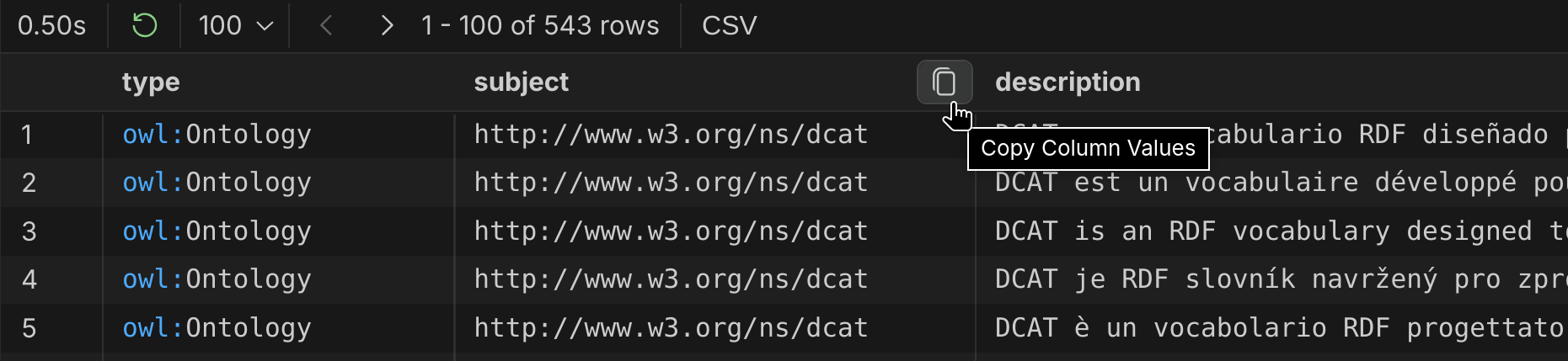
The table header cells do provide addtional commands when they are hovered:
| Item | Description |
|---|---|
| varname | Variable name as declared in the SPARQL query. |
| Copy Column Values | Copies the values of the column from the entire result set to the clipboard. |
Table Body
Section titled “Table Body”The table body displays the actual variable bindings returned by the query. Each row corresponds to a single result, with the values for each variable displayed in the appropriate column. To help identifying specific rows, the first column always contains the row number, starting from 1:
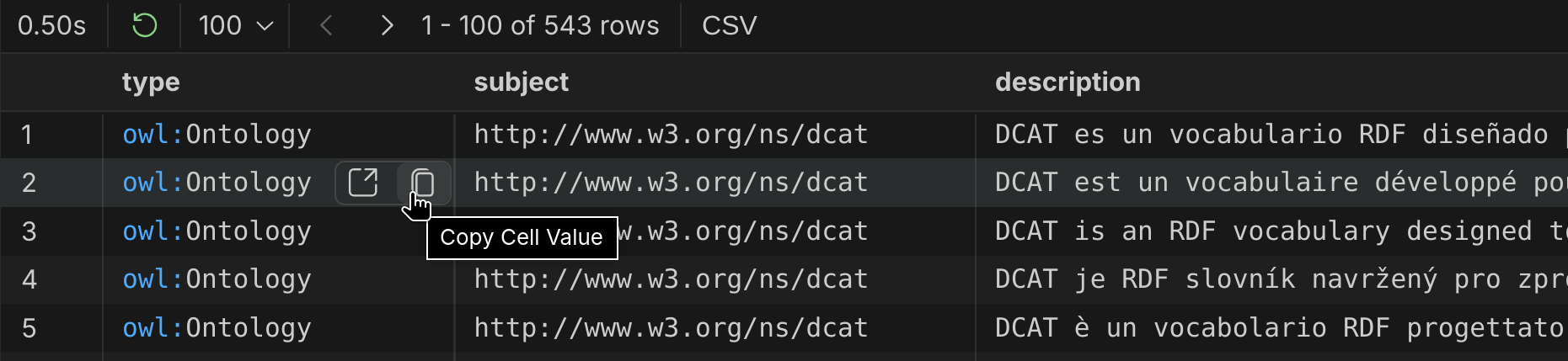
The table body cells do provide addtional commands when they are hovered:
| Item | Description |
|---|---|
value | The cell value. |
| Open in Browser | Opens the IRI in the default web browser. |
| Copy Cell Value | Copies the cell value to the clipboard. |
An important thing to mention is that IRI links in the bindings table do not directly open the URL in the browser when clicked. Instead, clicking on an IRI link will issue a describe query for that IRI. This is due to the fact that it is common practice, that the IRIs do not resolve to actual web resources, but rather serve as identifiers within the RDF graph.
By issuing a describe query, Mentor allows you to quickly explore the details of the resource represented by the IRI in the context of your workspace.
Boolean
Section titled “Boolean”For SPARQL Ask queries, the result is a single boolean value indicating whether the query pattern was matched:


The view only contains the basic query execution information and does not provide any additional features.
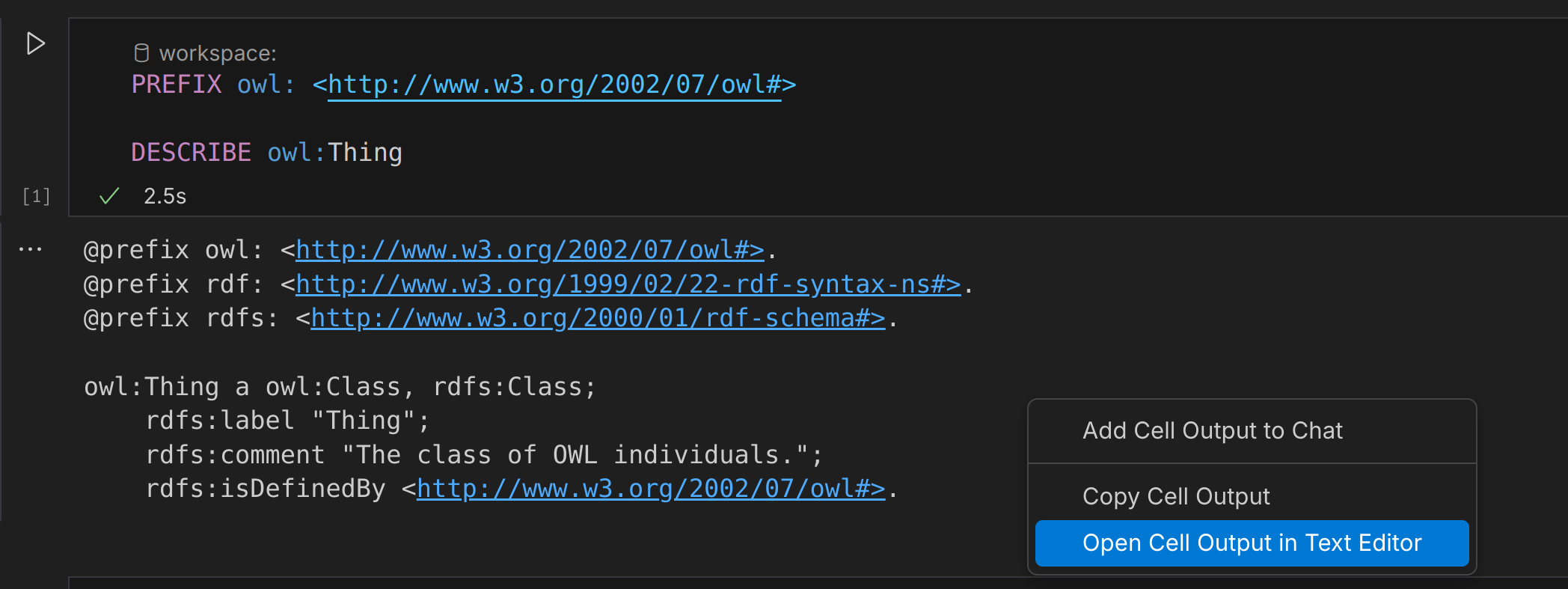
For SPARQL Construct or SPARQL Describe queries, the result is a set of RDF graphs that represent the data matching the query pattern.
Because the results of these queries are RDF documents, the output is not displayed in the output panel. Depending on the execution context, the output in Turtle format is displayed in the following locations:
| Query Context | Output Location |
|---|---|
| SPARQL Document | New editor document |
| Notebook Cell | Cell output area |
Exploring Results
Section titled “Exploring Results”The results of SPARQL Construct and Describe queries which are displayed in editor documents can be explored using the Definitions Tree.
Success / Failure
Section titled “Success / Failure”For SPARQL Update queries, the result is a success message indicating that the update was applied.
Settings
Section titled “Settings”The following settings can be used to configure the behaviour of the SPARQL query feature: