
Connections Tree
The Connections Tree provides a view of all SPARQL connections that can be used to issue queries. These SPARQL connections can be selected in query files or Mentor notebooks to execute queries against local or remote endpoints.
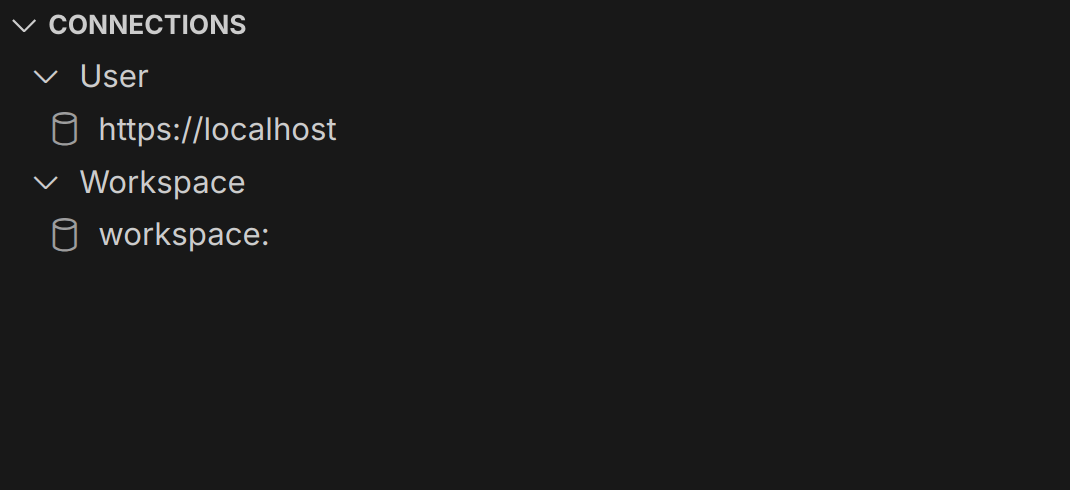
Title Bar
Section titled “Title Bar”The tree view is titled ‘Connections’ and enables the management of connections to SPARQL endpoints.
Primary Actions
Section titled “Primary Actions”The connections tree offers several actions that are visible as icons in the title bar:
| Action | Description |
|---|---|
| Add Connection | Configure a new SPARQL connection. |
| Refresh Tree | Manually refreshes the connections tree. |
| Collapse / Expand All | Collapse or Expand all nodes in the connections tree. |
Connection Scope
Section titled “Connection Scope”The tree displays two types of connections, User and Workspace.
| Type | Description |
|---|---|
| User | User connections are only available to the current user and are typically stored on the user’s local machine. |
| Workspace | Workspace connections are stored in the .vscode directory and can thus be shared with other users in version controlled repositories. |
Editing Connections
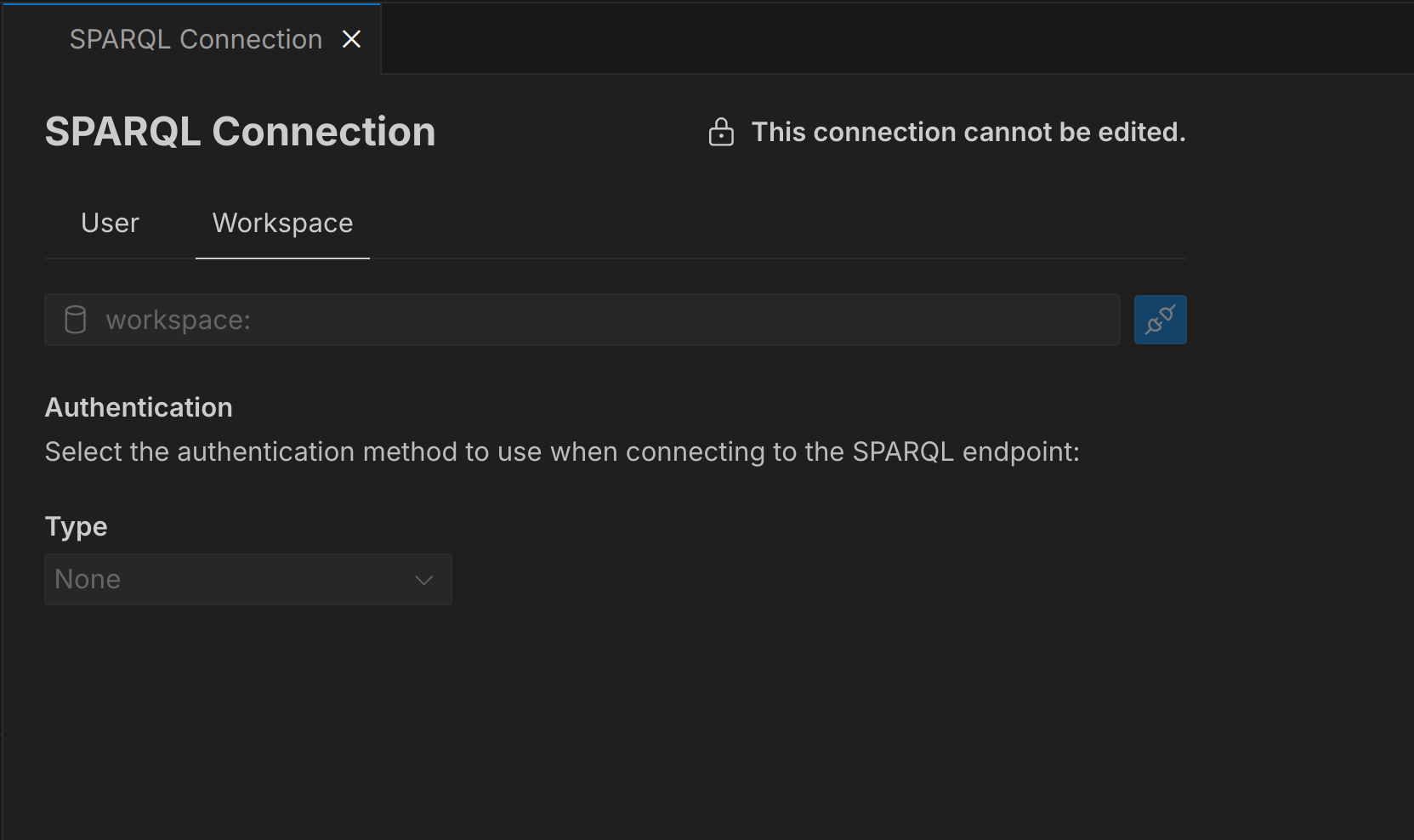
Section titled “Editing Connections”When you select an existing connection in the tree view or when you click on the ‘Add Connection’ icon in the title bar, the connection details will be displayed in an editor pane. From here, you can modify the connection settings, such as the SPARQL endpoint URL, authentication credentials, and other parameters. Once you have made your changes, you can save them to update the connection.
Authentication
Section titled “Authentication”The following authentication methods are supported for SPARQL connections:
| Type | Description |
|---|---|
| None | No authentication. |
| Basic | Basic HTTP(s) authentication using a username and password. |
| Bearer Token | Authentication using a bearer token. |
| Microsoft Entra | Authentication using Microsoft Entra ID provider that is built into Visual Studio Code. |
Testing Connections
Section titled “Testing Connections”Once you have configured a connection, you can test it to ensure that it is working correctly. To test a connection, follow these steps:
- Select the connection you want to test in the connections tree.
- Click on the button in the editor pane.
- The connection status will be displayed in the editor pane.
If the test fails, you may need to adjust the connection settings and try again.
Deleting Connections
Section titled “Deleting Connections”To delete a connection from the connections tree, follow these steps:
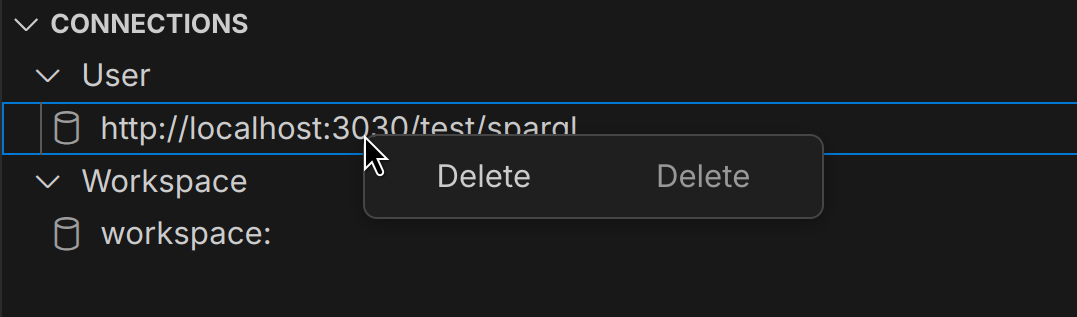
- Select the connection you want to delete in the connections tree.
- Right-click on the connection and select “Delete” from the context menu.
- Confirm the deletion when prompted.
Alternatively, you can delete a connection by selecting it and clicking on the icon in the connection header.
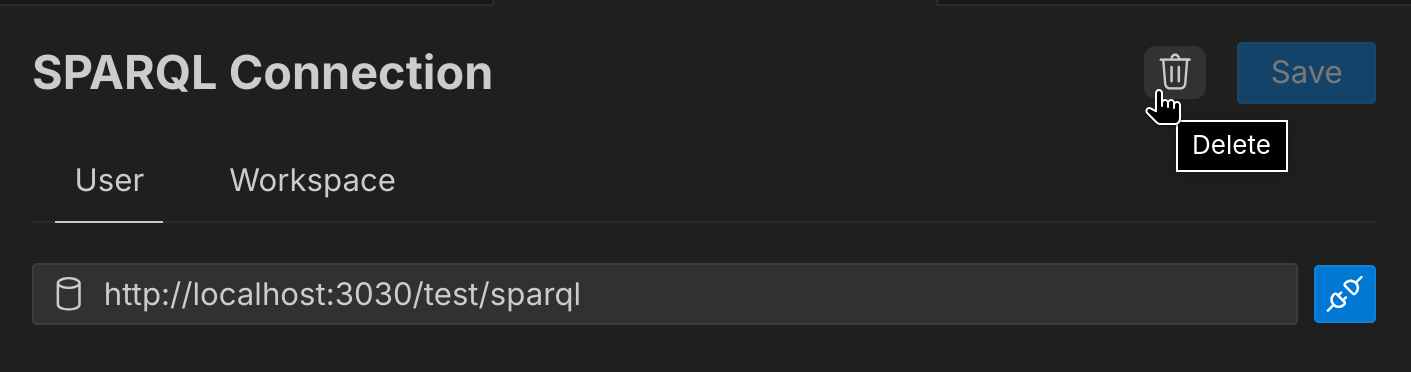
Once a connection is deleted, it cannot be recovered, so make sure you really want to delete it before confirming.